
Getting started
Create your account
Go to circuitpt.com/account, create an account with your email and a password, and choose a plan. Pro Monthly and Pro Yearly cover 2 devices and 60 AI debriefs and questions a month. Team covers 5 devices, 300 AI debriefs and questions a month shared by the team, and 5 driver logins (see Team plan). See pricing for prices.
A device is a browser: your laptop's Chrome and your phone's Safari count as two. The first time you use a new browser it is added to your plan, as long as there is room.
Try the demo
Open the app without any files and the demo loads: two cars in the same qualifying session at Bahrain, from real data logs, plus an example race for each driver. You can explore every tab with it. To analyse your own files you need to be signed in with a plan.
The screen at a glance
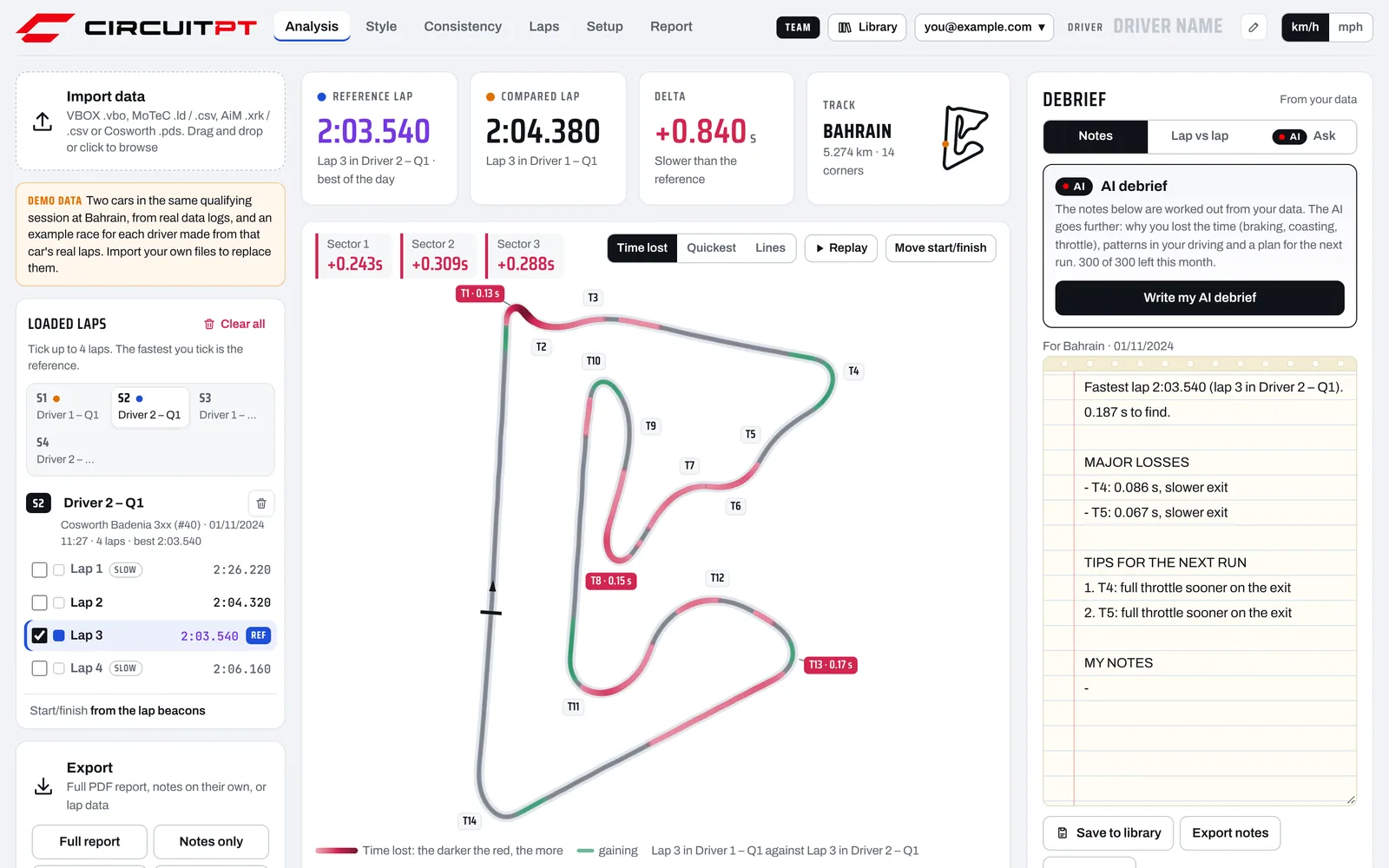
- Along the top
- The six tabs: Analysis, Style, Consistency, Laps, Setup and Report. On the right are your plan badge, your Library, your account menu, the Driver name and km/h or mph.
- Driver name
- Click it (or the pencil) to type your name. It goes on your PDF report, your notes and your race report. It is saved with your account, so it follows you to every device, and someone else signing in on the same laptop sees their own name, sessions and notes, not yours.
- Left
- Import data, the sessions and laps you have loaded, and quick exports.
- Middle
- The tab you are on.
- Right
- On the Analysis tab, the Debrief panel: your notes, Lap vs lap and Ask the AI.
Importing your data
Drag your files onto the app, or click Import data at the top left and choose them. You can add several at once.
Each file becomes a session (S1, S2 and so on). Add sessions from the same circuit to compare them: practice, qualifying and the race, a teammate's laps or a coach's.
| Logger | Files to drop |
|---|---|
| Racelogic VBOX | .vbo |
| MoTeC | .ld with its .ldx lap file, or a CSV export from i2 |
| AiM | .xrk or .xrz, Race Studio 2 .gpk with its .drk, or a CSV export from Race Studio |
| Cosworth Pi Toolbox | .pds, with or without GPS |
Laps, sectors and corners are worked out in your browser. When you are signed in, each file is also saved, compressed, to your private library, so you can open it again later on any of your devices. When you refresh the page, the sessions you had open come back.
The start/finish line
The foot of the lap list says where the laps came from: the VBOX file, the lap beacons, the speed trace or found automatically. If the line is in the wrong place, press Move start/finish above the track map and tap the track where the line is. Press Reset under the lap list to go back.
If no laps can be found at all, the app shows the GPS trace and asks you to click where the start/finish line is. The main straight works best, at a point the car passed on every lap.
MoTeC tip. Drop the .ldx file from i2 together with the .ld, so your beacon laps are used.
Naming and removing sessions
To rename a session, press the pencil next to its name above its laps (or click the name), type a new one, for example "Qualifying" or "Tom's fastest", and press Enter. Escape keeps the old name. If the session is in your library, it gets the new name there too. The bin next to it removes that session, and Clear all removes every session. Both give you a few seconds to Undo. Removing a session here does not delete it from your library.
If a log has no GPS, the app tries to recognise the circuit from it. If it can't, there is no track map, but laps, sectors, corners, traces, notes and the debrief all still work, with laps lined up by distance.
Choosing laps to compare
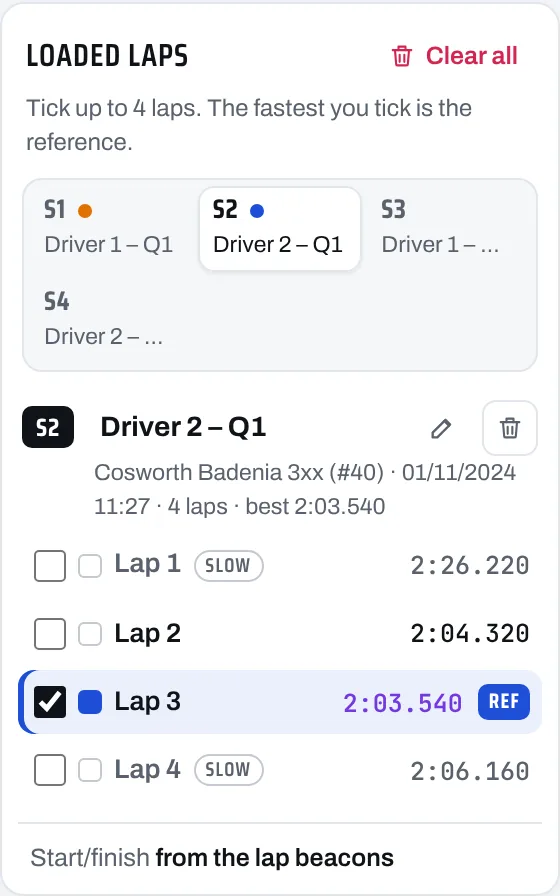
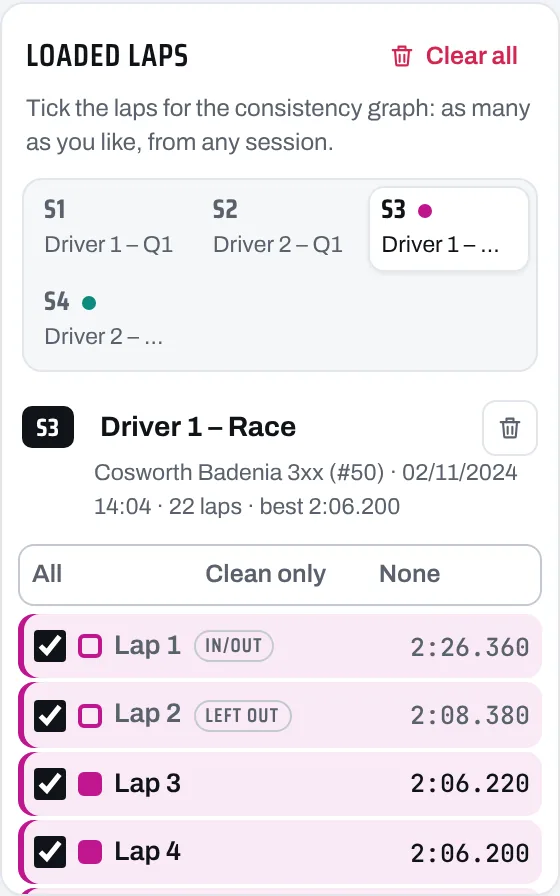
The Loaded laps list on the left shows one session at a time. Switch between sessions with the S1, S2… tabs at its top. A coloured dot on a tab shows that one of its laps is ticked.
Tick up to four laps, from any sessions. The fastest lap you tick is the reference (marked REF), and every other ticked lap is compared against it. Each lap keeps its colour on the cards, the map and the traces.
Laps marked slow were not push laps: more than 7% off the best lap, or a sector well off its best, such as an out lap or a cool-down lap.
Analysis
The Analysis tab shows where the compared lap loses or gains time against the reference.
- Reference lap
- The fastest lap you ticked, and the best of the day.
- Compared lap
- The lap being compared. With more than one, pick which with the coloured dots on this card.
- Delta
- How much slower (red, above zero) or faster (green) the compared lap is.
- Track
- The circuit, its length and the number of corners found.
- Sector chips
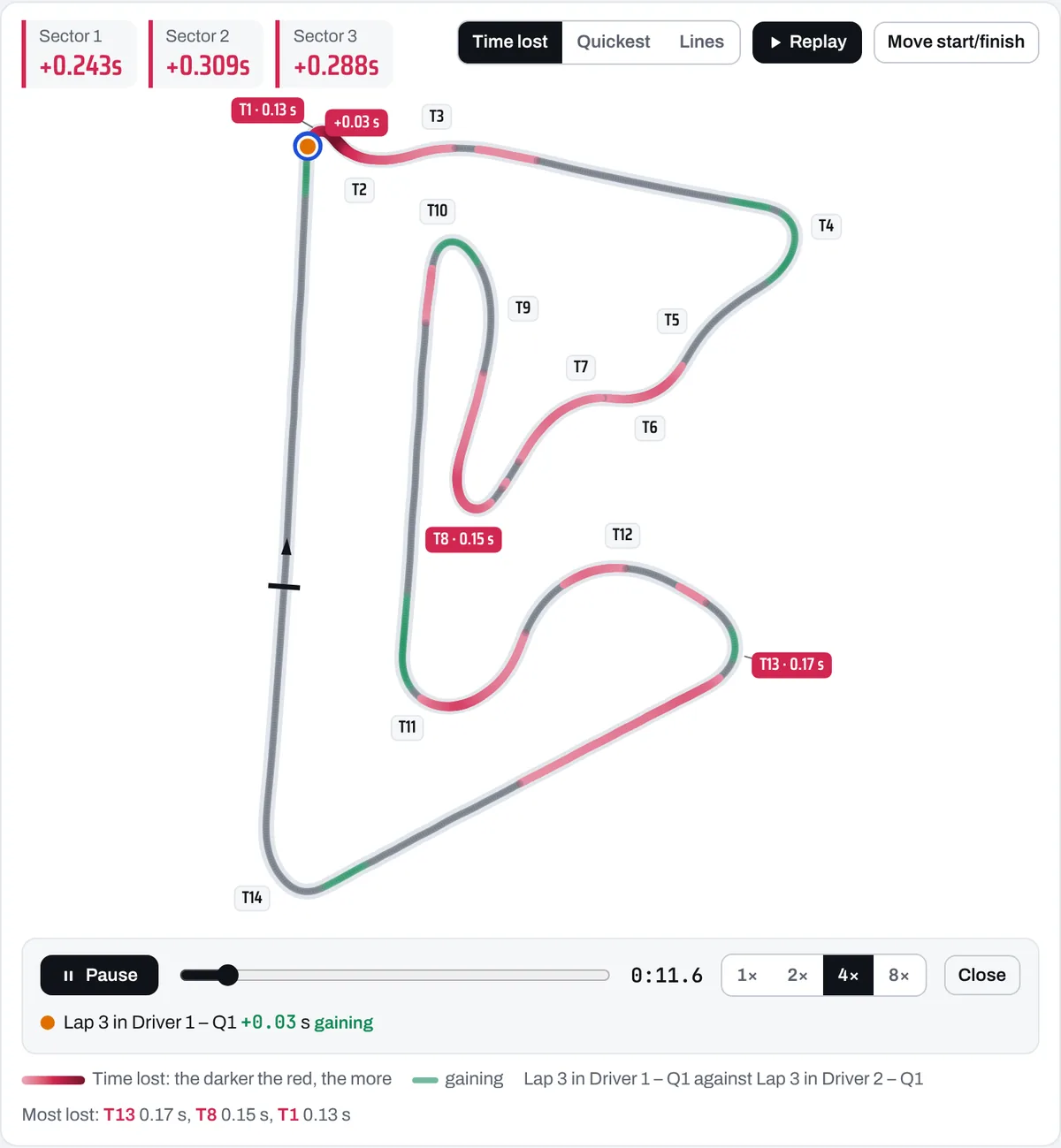
- Above the map: the gap in each sector. Sectors use the split gates in your file, or otherwise split the lap into equal thirds.
The track map
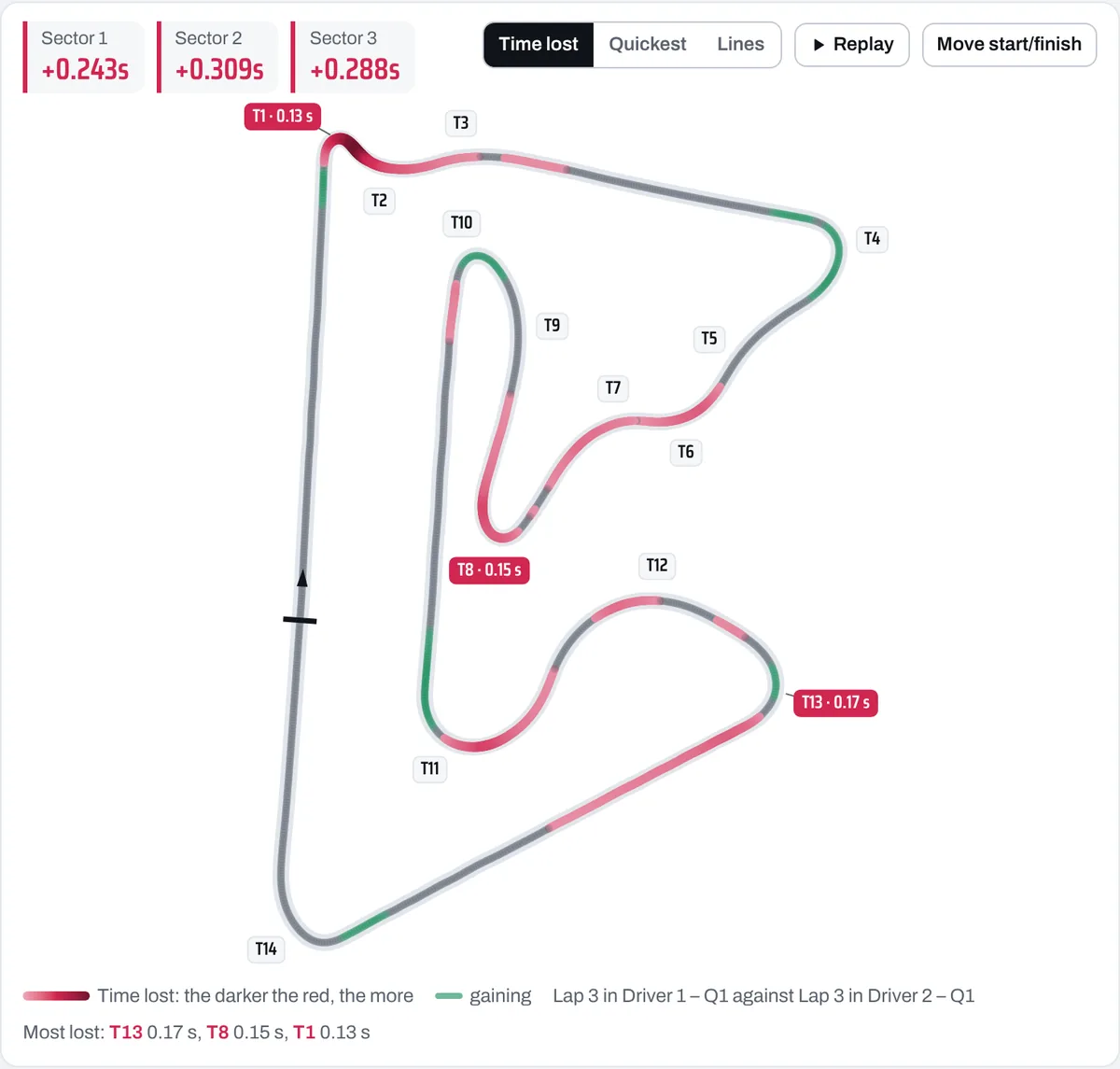
Choose how the map is coloured with the buttons above it:
- Time lost
- Red where time is lost, and the darker the red, the more. Green is where the compared lap gains. The corners losing most are labelled with the time lost. With only one lap ticked, it shows where the reference loses time against the best of all your laps.
- Quickest
- Each 50 m of track in the colour of the lap that was quickest through it.
- Lines
- Each lap's own line round the track.
Replay
Press Replay and the ticked laps drive round the map together, each at its own logged pace, so you can watch the gap open and close. Pause, scrub, and choose 1×, 2×, 4× or 8× speed. If you have zoomed into part of the lap, the replay runs just that stretch, with every lap starting it together. Press Close or Esc to stop.
The traces
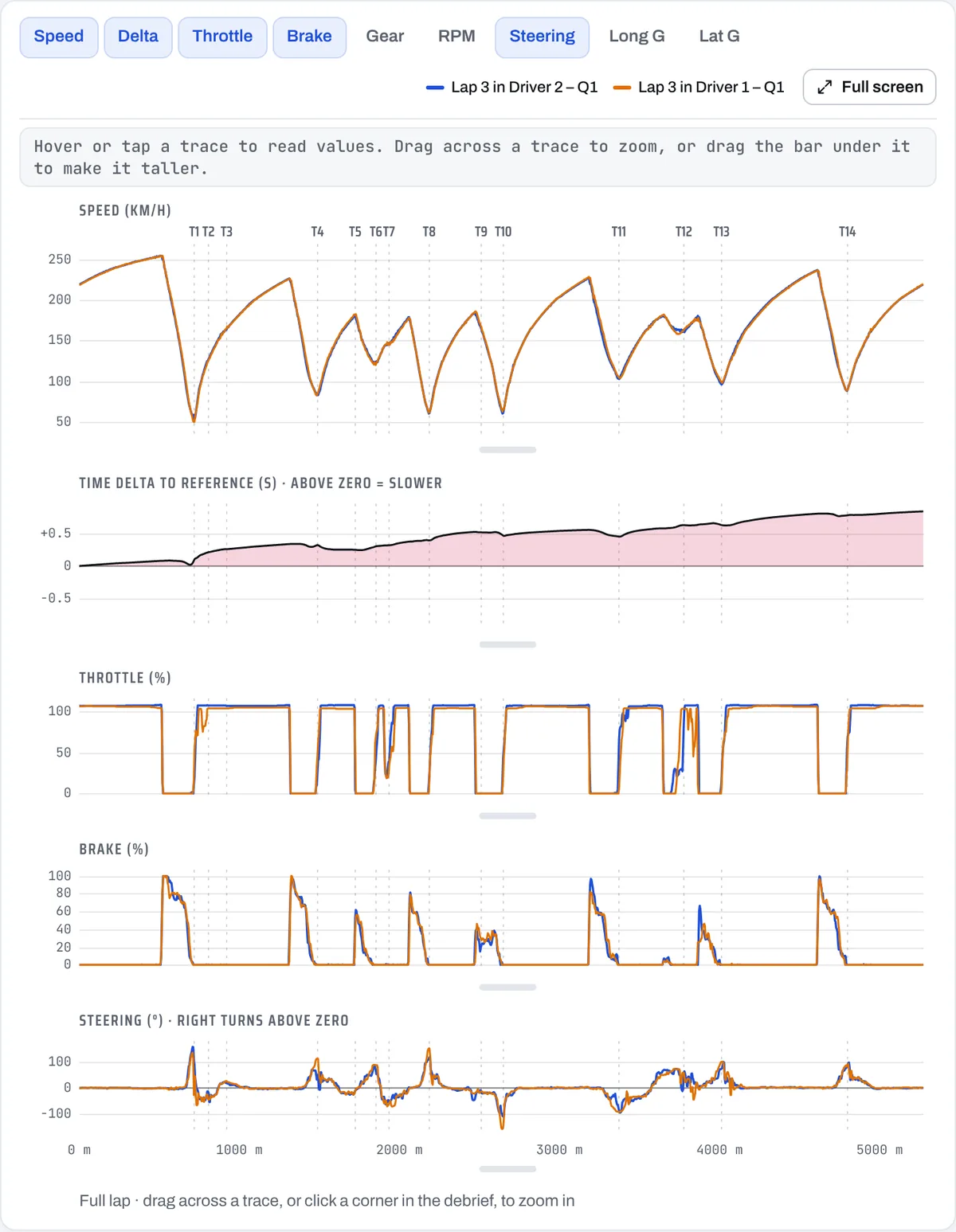
Under the map are the traces of the ticked laps against distance. Turn channels on and off with the chips at the top: Speed, Delta (time to the reference, above zero is slower), Throttle, Brake, Gear, RPM, Steering, Long G and Lat G. You only see the channels your logger recorded.
- Read values: hover over a trace. The values of every lap at that point show above the traces, and a marker moves on the map.
- Zoom: drag across a trace, or click a corner in Lap vs lap. Press Show full lap to zoom out.
- Taller traces: drag the bar under a trace. The height is remembered.
- Full screen: press Full screen to fill the screen with the traces.
Debrief: notes and the AI
The Debrief panel on the right of the Analysis tab has three views: Notes, Lap vs lap and Ask.
Notes
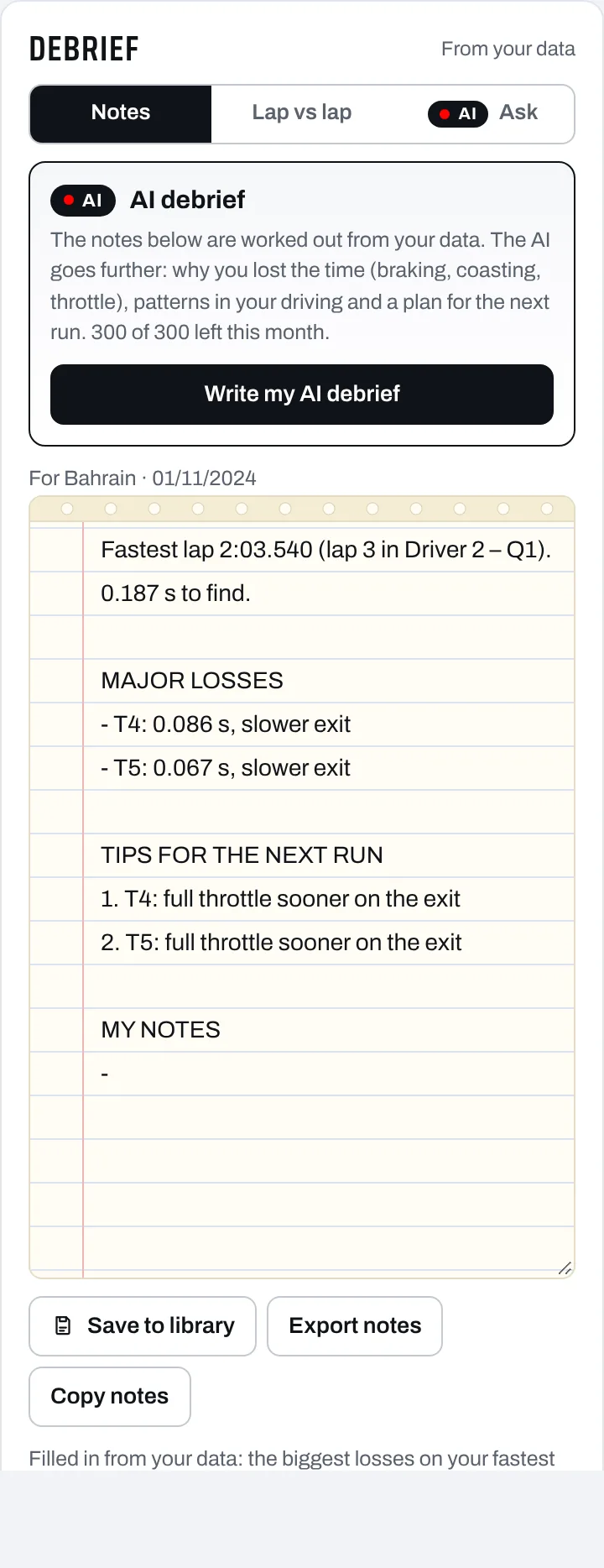
As soon as your laps load, the notes are written from your data: your fastest lap and how much is left to find, the major losses corner by corner, and tips for the next run. Below them, MY NOTES is yours to fill in. You can edit any of it.
Notes are saved to your account automatically, one set for each circuit and day, so they come back when you open the session again. The line above the notepad shows which circuit and day they belong to.
- Refresh from data replaces your edited notes with fresh points from the laps. It asks first.
- Save to library keeps a named copy in your library, for example "Silverstone FP2 debrief".
- Export notes downloads them as a one-page PDF. Copy notes copies the text.
AI debrief
Press Write my AI debrief. The AI reads how you drove every corner against your quickest laps and writes why you lost the time (braking, coasting, throttle), the patterns in your driving and a plan for the next run. It also looks at your earlier sessions at the same track in your library. The debrief goes into your notes, above MY NOTES. Each debrief counts towards your monthly AI allowance, and the box shows how many you have left.
Lap vs lap
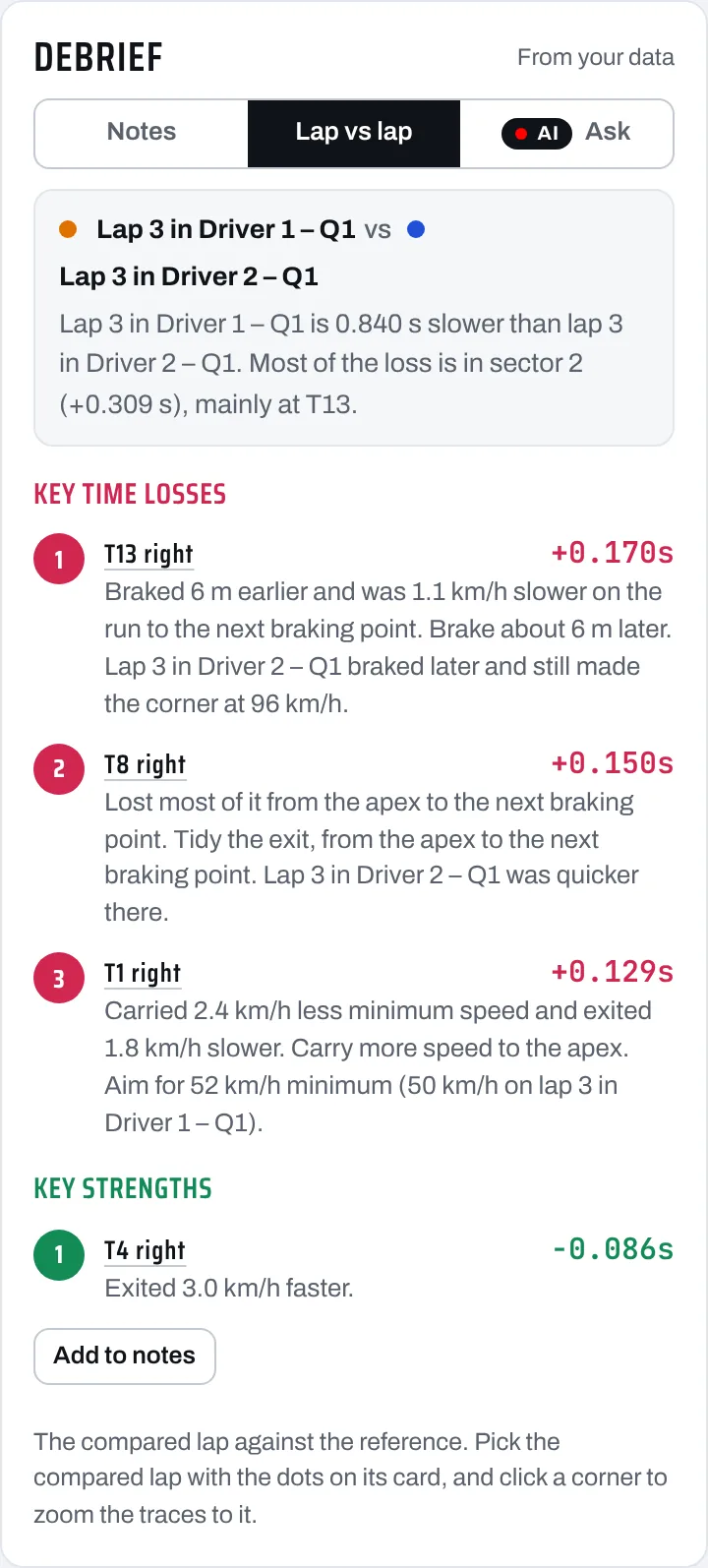
The compared lap against the reference, in words: the key time losses and the key strengths, corner by corner, with what was done differently (braked earlier, carried less minimum speed, exited slower) and the speed to aim for.
Click a corner's name to zoom the traces to it. Press Add to notes to copy it into your notes.
Ask the AI
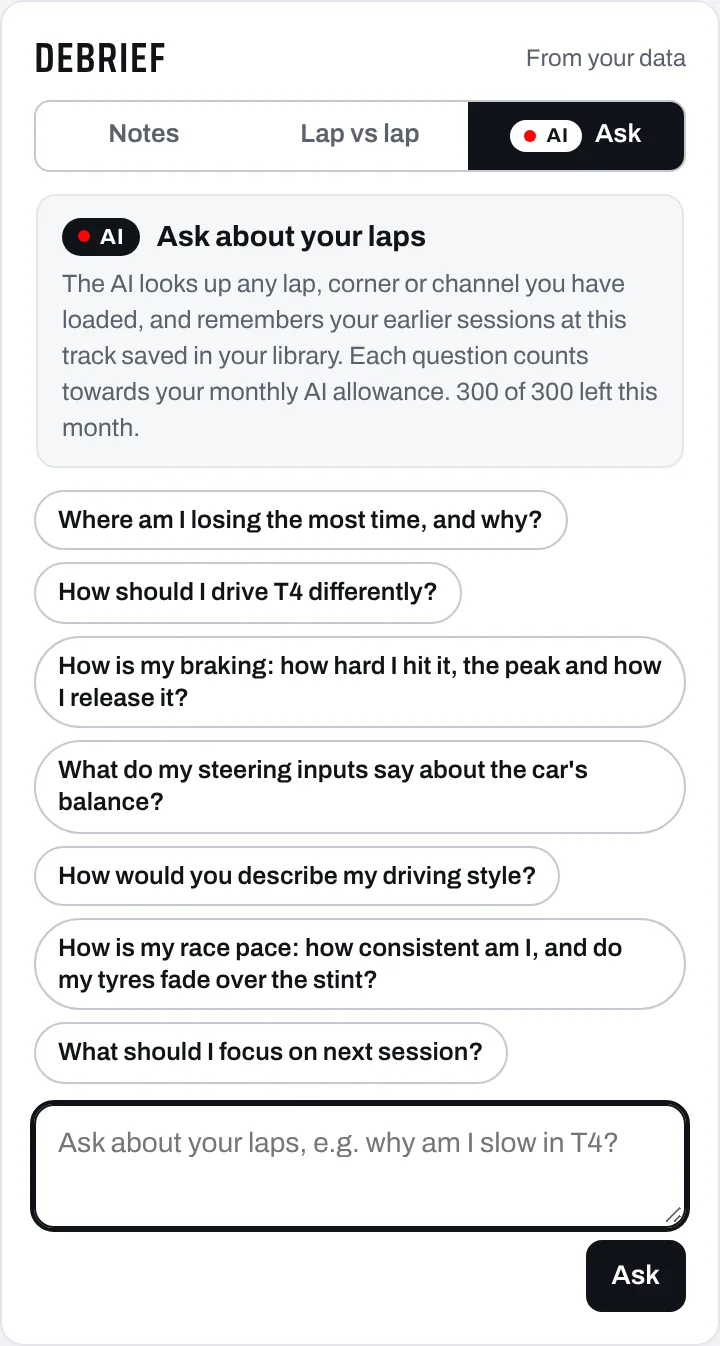
Ask anything about your laps in plain words, or tap one of the suggested questions: where am I losing the most time, how should I drive T4 differently, how is my braking. The AI can look up any lap, corner or channel you have loaded, and your earlier sessions at this track in your library.
Press Enter or Ask to send. Under an answer, Add to my notes copies it into your notes, and Ask again asks the same question again. Each question counts towards your monthly AI allowance.
Style
The Style tab describes how each ticked lap is driven, and compares the laps with each other. At the top is a one-line summary of each lap, for example "Coasts briefly before the throttle, brakes very hard and trails the brake into the corner".
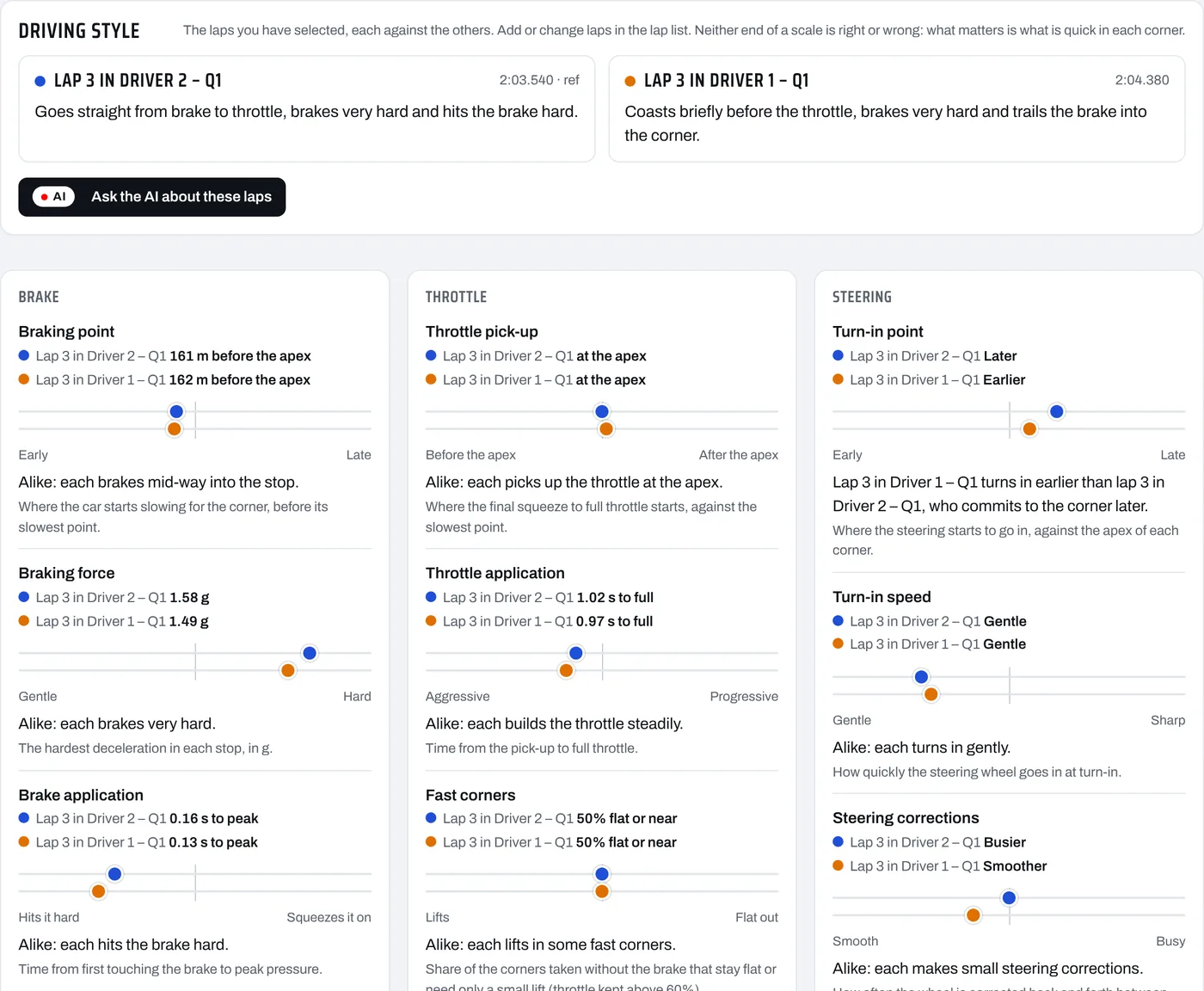
The traits are grouped into Brake, Throttle, Corner and Steering, each on a scale with every lap marked in its colour. Under each scale is a line on how the laps compare and what the trait measures. Neither end of a scale is right or wrong: what matters is what is quick in each corner.
Below the scales, Where the styles differ most lists the corners where the laps are driven most differently. With one lap ticked, it lists the corners driven most unlike the rest of the lap. Click a corner to jump to it on the Analysis tab, with the traces zoomed in. Press Ask the AI about these laps for the AI's reading of the styles.
Some traits need certain channels in the log. Braking traits need brake pressure for the most detail, throttle traits need a throttle channel, corner traits need GPS or a lateral g sensor, and steering traits need a steering angle channel. The tab says which are missing.
Consistency
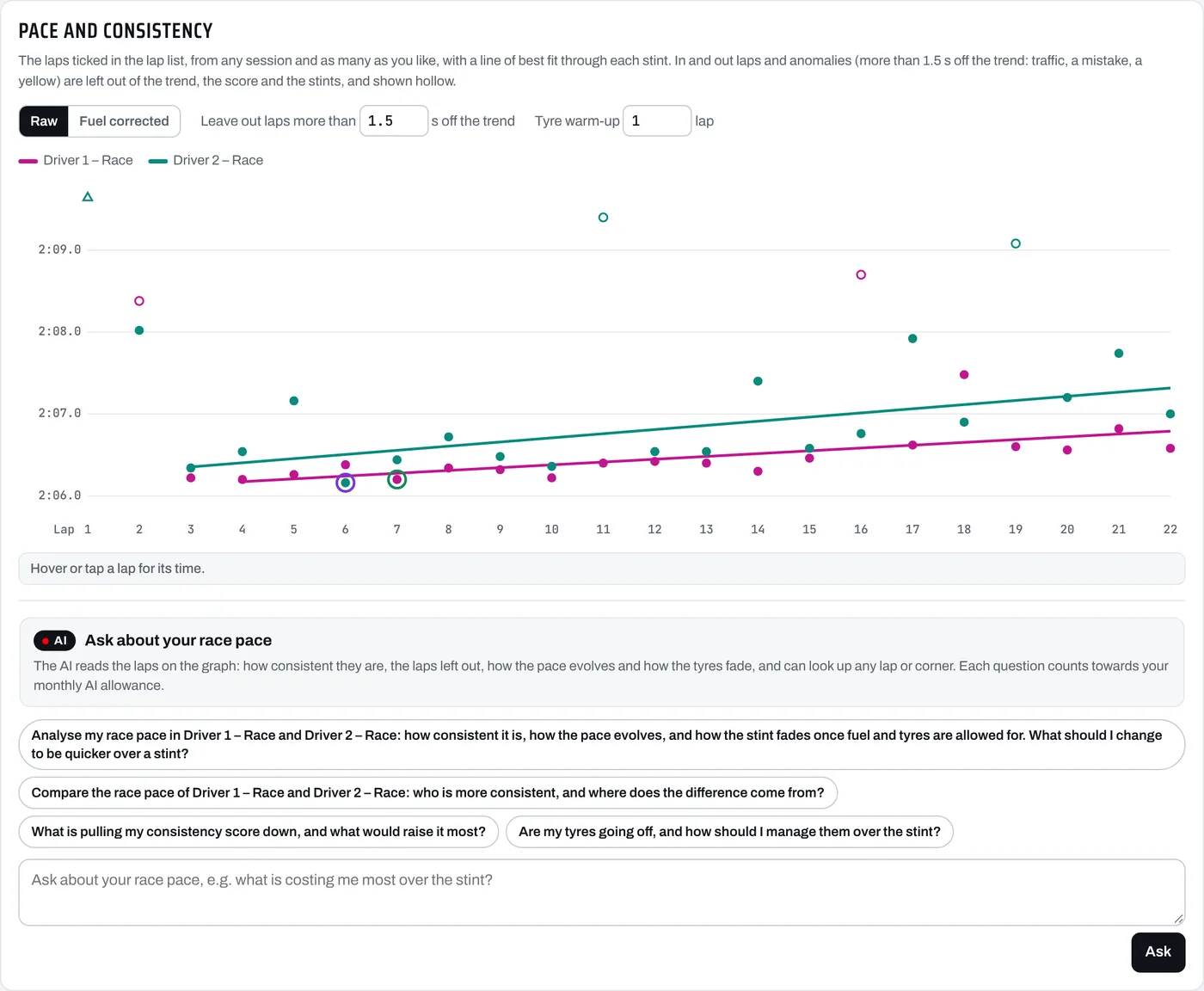
The Consistency tab plots your laps one after another, for race pace and long runs. It draws a line of best fit through each stint, gives each session a consistency score, and shows how your pace fades once fuel and tyres are allowed for.
Choosing the laps on the graph
On this tab, the lap list on the left ticks laps on and off the graph. Tick as many as you like, from any sessions: the graph and every number adjust as you go. All, Clean only and None do a whole session at once. When you first open it, every lap of sessions with a run of three or more clean laps is on.
Laps left out of the trend
In and out laps, and anomalies more than 1.5 s off the trend (traffic, a mistake, a yellow flag), stay on the graph as hollow markers but are left out of the line, the score and the stint numbers. In the lap list they are tagged with the reason. Each stint's fastest lap has a green ring on the graph and a green time in the lap list, and the fastest lap on the graph has a purple one. A pit stop splits the run into stints automatically.
Settings
- Raw or Fuel corrected
- Raw plots the lap times as driven. Fuel corrected plots them as if every lap of the stint carried its starting fuel, so the tyres' fade is easier to see.
- Leave out laps more than…
- How far off the trend a lap can be before it is left out. 1.5 s to start with.
- Tyre warm-up
- How many laps at the start of each stint are not used for the trend while the tyres come in.
The numbers for each session
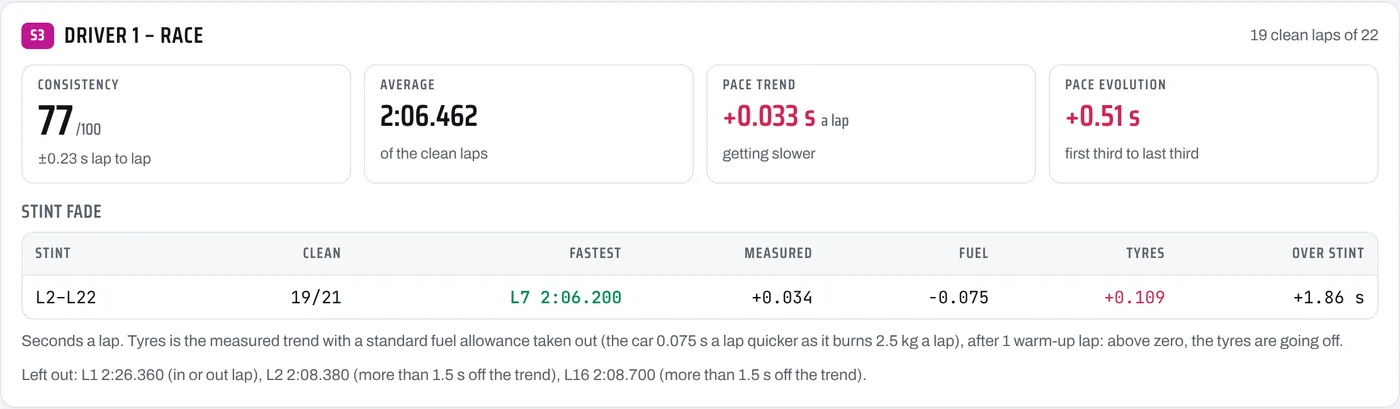
- Consistency
- A score out of 100 from how much your clean laps scatter around the trend: it drops by 10 for every tenth of a second of lap-to-lap scatter.
- Average
- Your average clean lap.
- Pace trend
- How much slower (or quicker) you got each lap.
- Pace evolution
- Your average over the first third of the run against the last third.
- Stint fade
- For each stint: Fastest is the stint's fastest lap, in green, or in purple when it is the fastest lap on the graph. Measured is the trend in seconds a lap. Fuel is the time gained as fuel burns off, from a standard allowance (2.5 kg a lap at 0.03 s a kg, so 0.075 s a lap). Tyres is the measured trend with the fuel taken out: above zero, the tyres are going off. Over stint is the total fade from the tyres.
Ask about your race pace, under the graph, puts your questions to the AI about the laps on the graph, and the answer stays right there. Each question counts towards your monthly allowance.
A line needs at least three clean laps in a stint. A qualifying run of two flying laps between cool-down laps has no line or score.
Laps
The Laps tab has every lap of every session in one place.
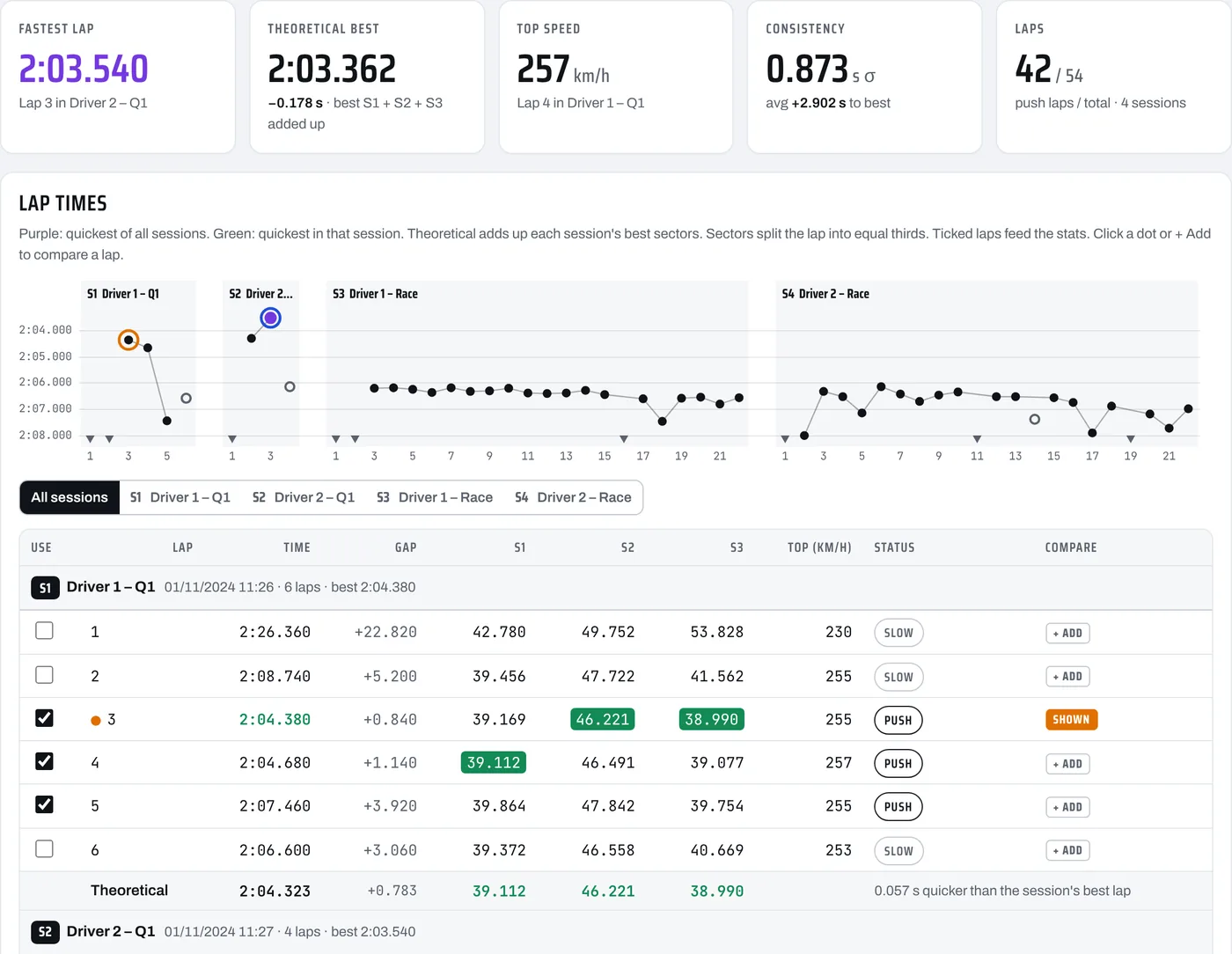
- Summary
- Fastest lap, theoretical best (your best S1, S2 and S3 added together: the purple sector times in the table), top speed, consistency (the spread of your push laps) and how many push laps there are.
- Lap chart
- Every lap time through the sessions. Use the session buttons under it to show one session or all of them.
- Lap table
- Each lap's time, gap to the fastest, sector times, top speed and status. Purple is the quickest of all sessions, green the quickest in that session. Each session ends with its theoretical lap: its best sectors added together.
- Use
- The tick on the left chooses which laps count in the stats.
- Compare
- + Add shows a lap on the Analysis tab, the same as ticking it in the lap list.
- Status
- push is a flying lap. slow is an out lap, in lap or cool-down lap. invalid is a lap of the wrong length, such as a cut or the pit lane. incomplete has a gap in the data.
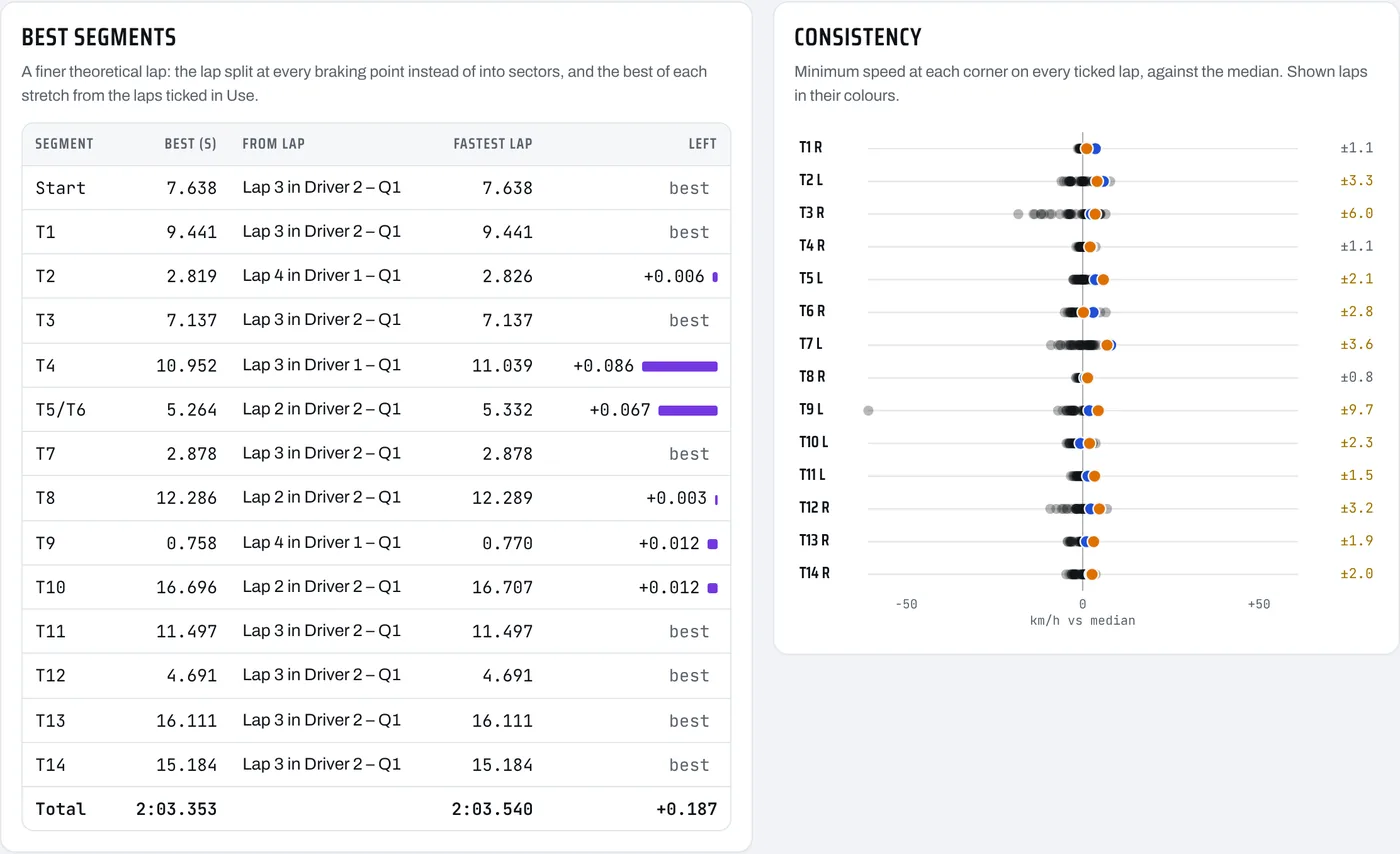
Best segments is a finer theoretical lap. It splits the lap at every braking point instead of into sectors, and shows which of the laps ticked in Use was quickest through each stretch and how much your fastest lap left there. Because the stretches are shorter, its total can be a little different from the theoretical best on the card. Consistency shows your minimum speed at each corner on every ticked lap against the median, so you can see where you vary most.
Setup
On the Setup tab you tell the AI how the car felt, and it suggests setup changes: ride heights, camber, toe, tyre pressures, anti-roll bars, springs, dampers, aero, brake bias, the differential or the electronics. It checks what you felt against your data first, so it can tell a car problem from a driving one.
How did the car feel?
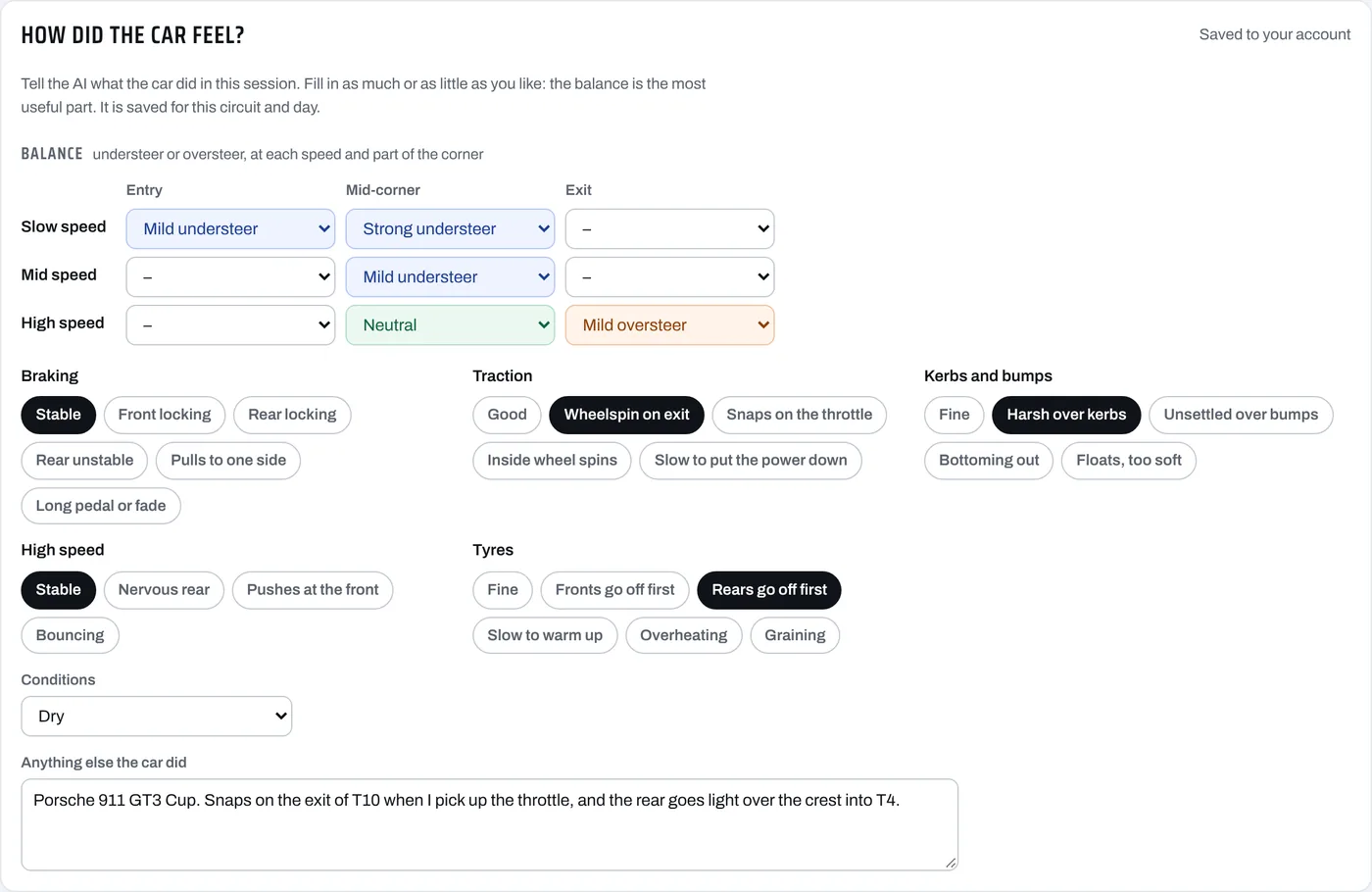
- Balance
- For slow, mid and high speed corners, pick the balance on entry (braking and turn-in), mid-corner and exit (back on the power), from strong understeer to strong oversteer. Leave blank anything you can't say. This is the most useful part.
- Braking, traction, kerbs, high speed and tyres
- Tick anything that fits, such as Rear locking, Wheelspin on exit or Harsh over kerbs.
- Conditions
- Dry, damp or wet.
- Anything else
- In your own words, for example where the car snapped and when. Naming your car and anything your series fixes, such as spec dampers, helps the AI. So do your hot pressures and tyre temperatures (inside, middle and outside) if you took them: they are what it needs to get pressures and camber right.
It is saved as you type, one for each circuit and day.
Setup advice
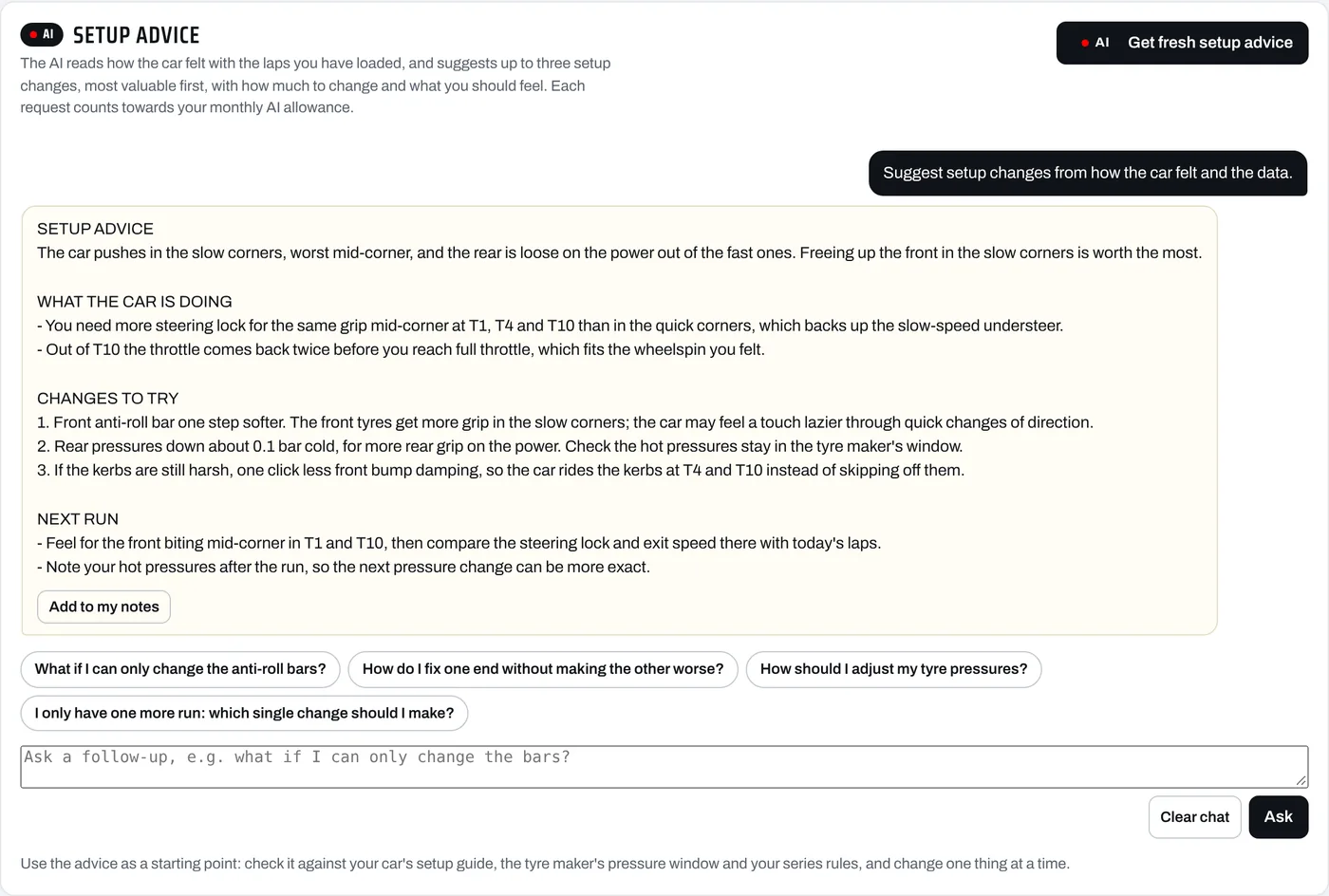
Press Get setup advice. You get:
- Setup advice: the car's main problem and the change worth the most
- What the car is doing: what you felt, checked against the data, with the corners where it happens
- Changes to try: up to three, most valuable first, each with how much to change, why, what you should feel and what it may cost. It picks from every kind of setting, not just the anti-roll bars: tyre pressures when the tyres point to them, camber for mid-corner grip and tyre wear, and ride height and rake for fast corners, kerbs and bottoming out
- Other options: one or two other settings that would move the car the same way, in case your car can't change the ones above
- Next run: what to feel for, and what to look at in the data afterwards
Ask follow-ups underneath, such as "What if I can only change the anti-roll bars?", or tap a suggested one. Add to my notes copies the advice into your debrief notes. If you change what you told it, Get fresh setup advice asks again. Each request counts towards your monthly AI allowance.
Use it as a starting point. Check every change against your car's setup guide, the tyre maker's pressure window and your series rules, and change one thing at a time so you can feel what each one did.
Reports and exports
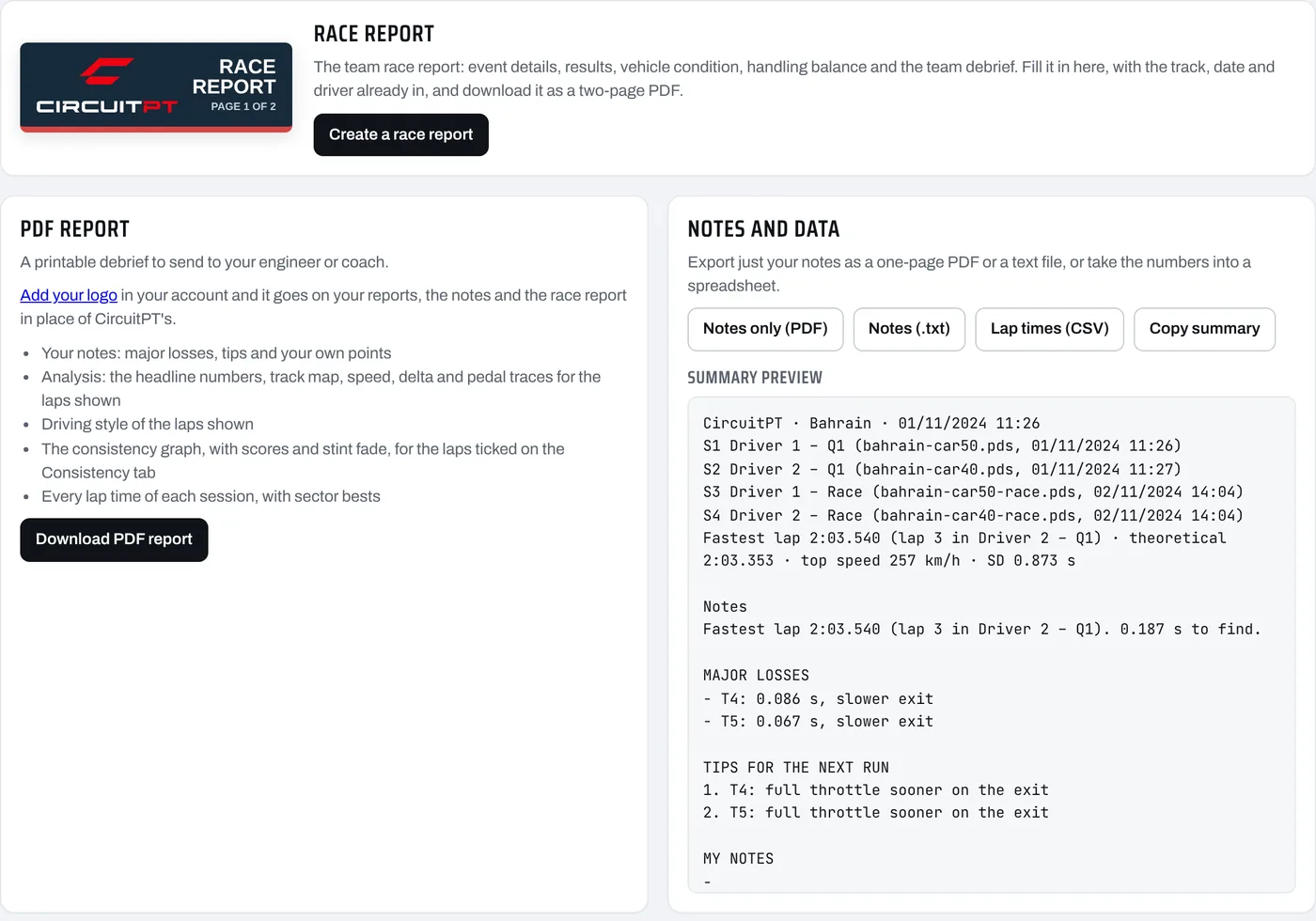
PDF report
On the Report tab, press Download PDF report for a printable debrief to send to your engineer or coach. It has:
- your notes: major losses, tips and your own points
- the analysis: the headline numbers, track map, and the speed, delta and pedal traces of the laps shown
- the driving style of the laps shown
- the consistency graph, with scores and stint fade, for the laps ticked on the Consistency tab
- every lap time of each session, with sector bests
The same report is under Full report in the Export box at the bottom of the lap list.
Race report
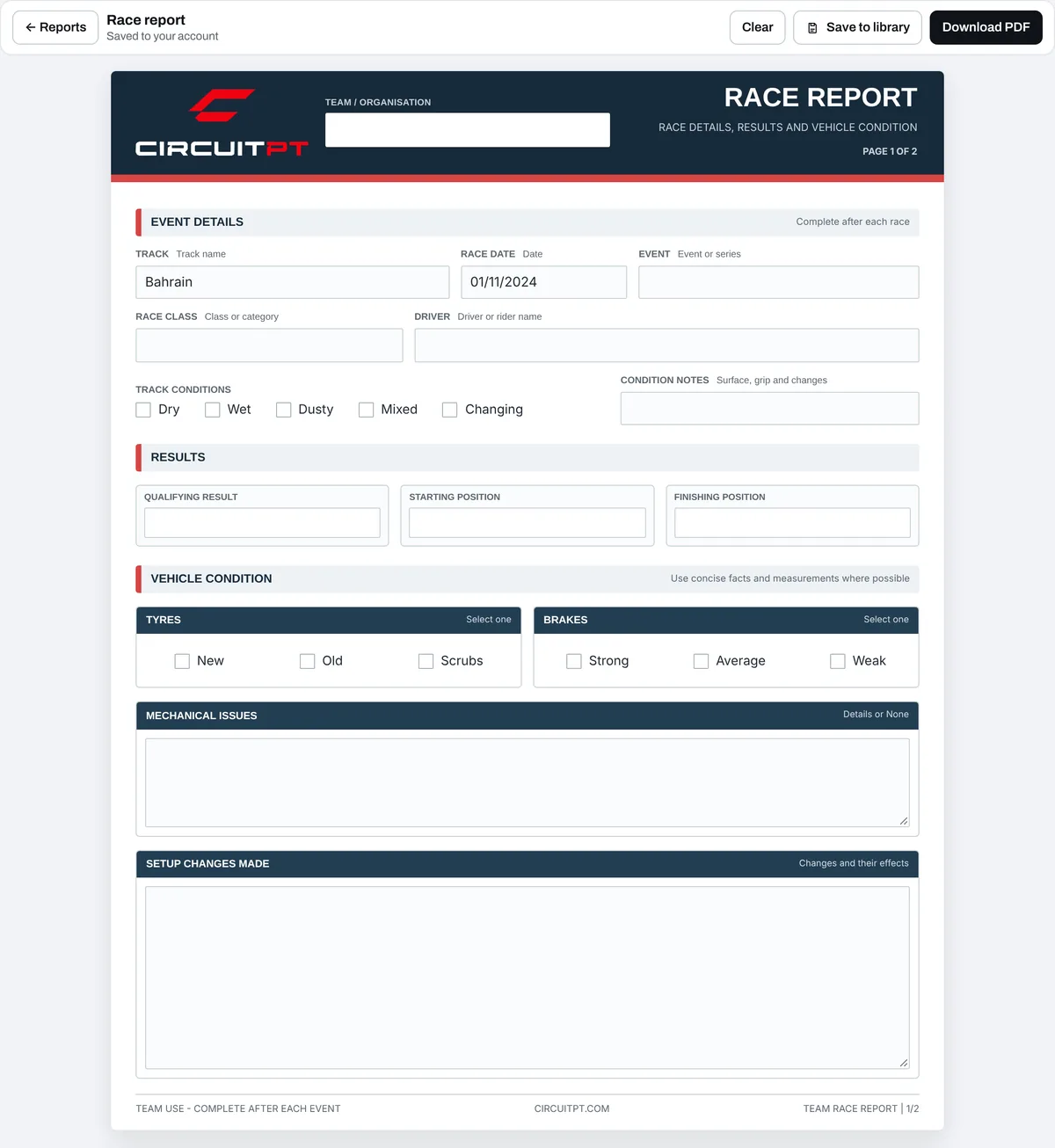
The race report is the team's two-page template. Press Create a race report and fill it in on screen. The track, date and driver are already in.
Page 1: team, event details, track conditions, qualifying, starting and finishing positions, tyres, brakes, mechanical issues and setup changes. Page 2: handling balance at slow, mid and high speed, overall handling notes, and the team debrief (key positives and areas for improvement).
It saves to your account as you type, one report for each circuit and day. Save to library keeps a named copy, Download PDF gives you the two-page PDF, and Clear starts again.
Other exports
- Notes only (PDF)
- Your notes on one page.
- Notes (.txt)
- Your notes as a text file.
- Lap times (CSV)
- Every lap with its sector and segment times and top speed, to open in a spreadsheet.
- Copy summary
- A text summary of the sessions and your notes, ready to paste into a message.
Your logo on reports
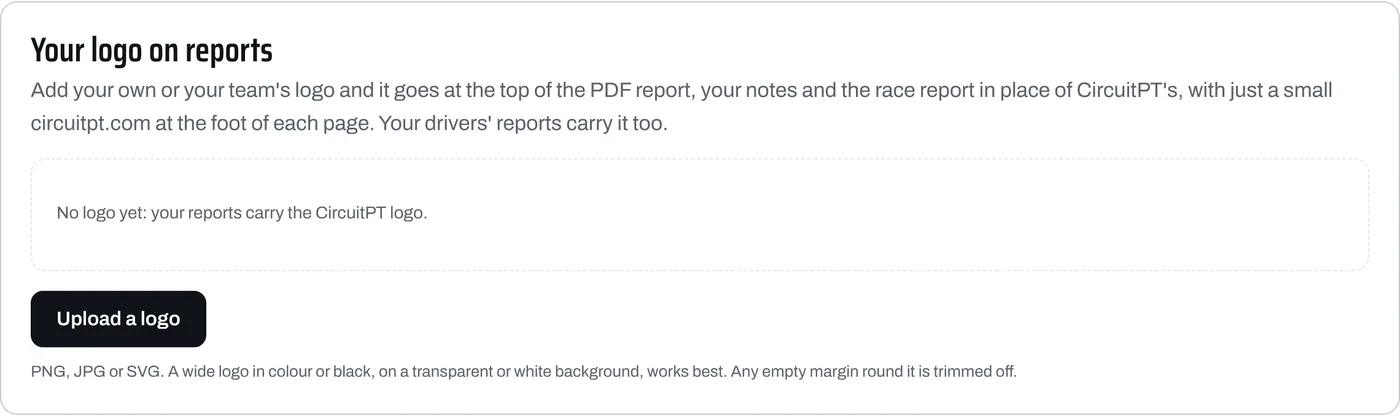
In your account, under Your logo on reports, upload your logo (PNG, JPEG, SVG or WebP, up to 8 MB). It replaces the CircuitPT logo on your PDF report, notes PDF and race report, and CircuitPT becomes a small circuitpt.com line at the foot of each page. Empty margins are trimmed for you. The logo needs some colour to show on white paper, so an all-white logo is refused. You can change or remove it at any time. On a Team plan, the owner's logo goes on every driver's reports.
Your library
Press Library at the top of the app. Everything in it is private to your login.
- Data
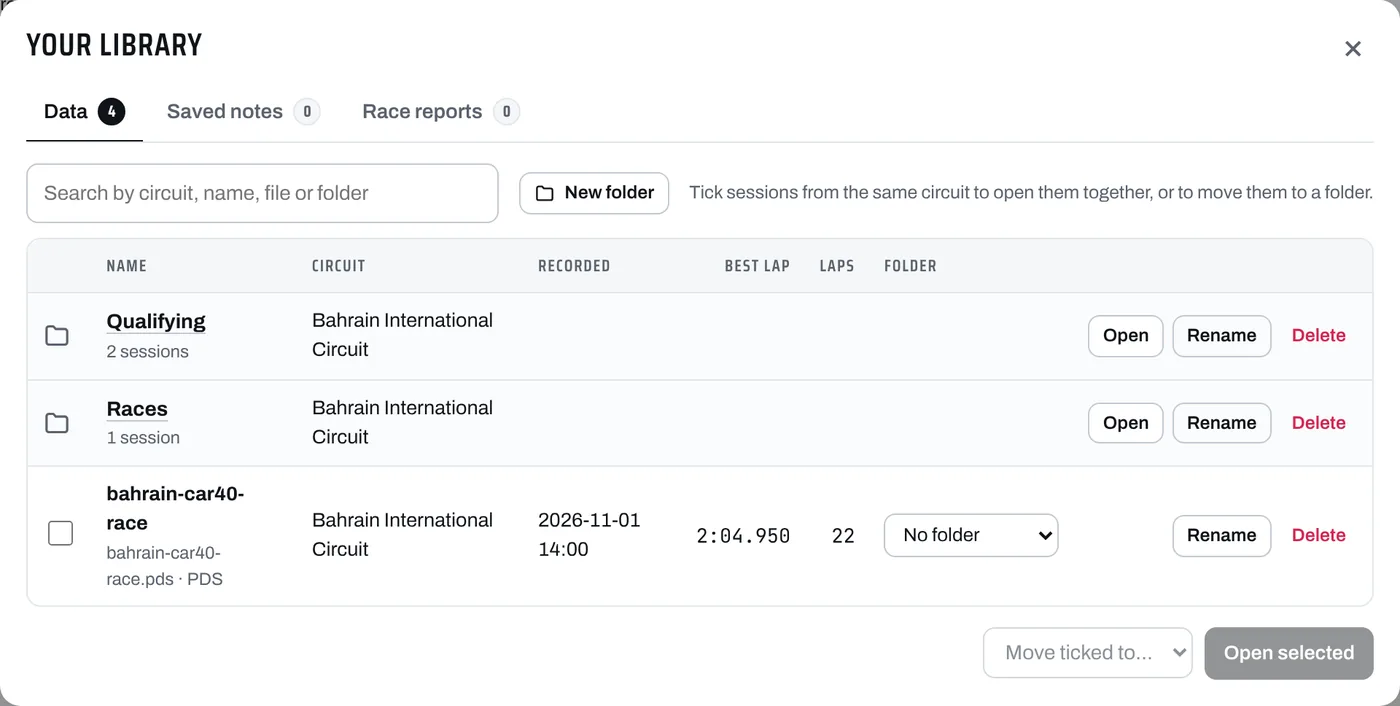
- Every file you import, saved automatically. Search by circuit, name, file or folder. Tick sessions from the same circuit and press Open selected to load them together. Rename gives a session a name of your own (the file itself doesn't change), and the app uses that name when you open the session. Delete asks you to confirm.
- Saved notes
- The notes you saved with Save to library. Open them to read, copy, download as .txt or PDF, rename or delete.
- Race reports
- The race reports you saved. Open shows the PDF in a new tab, Edit opens it in the form (changes save back to that copy), and you can download, rename or delete it.
- From your drivers
- Team owners only: what your drivers have sent you. See From your drivers.
Folders
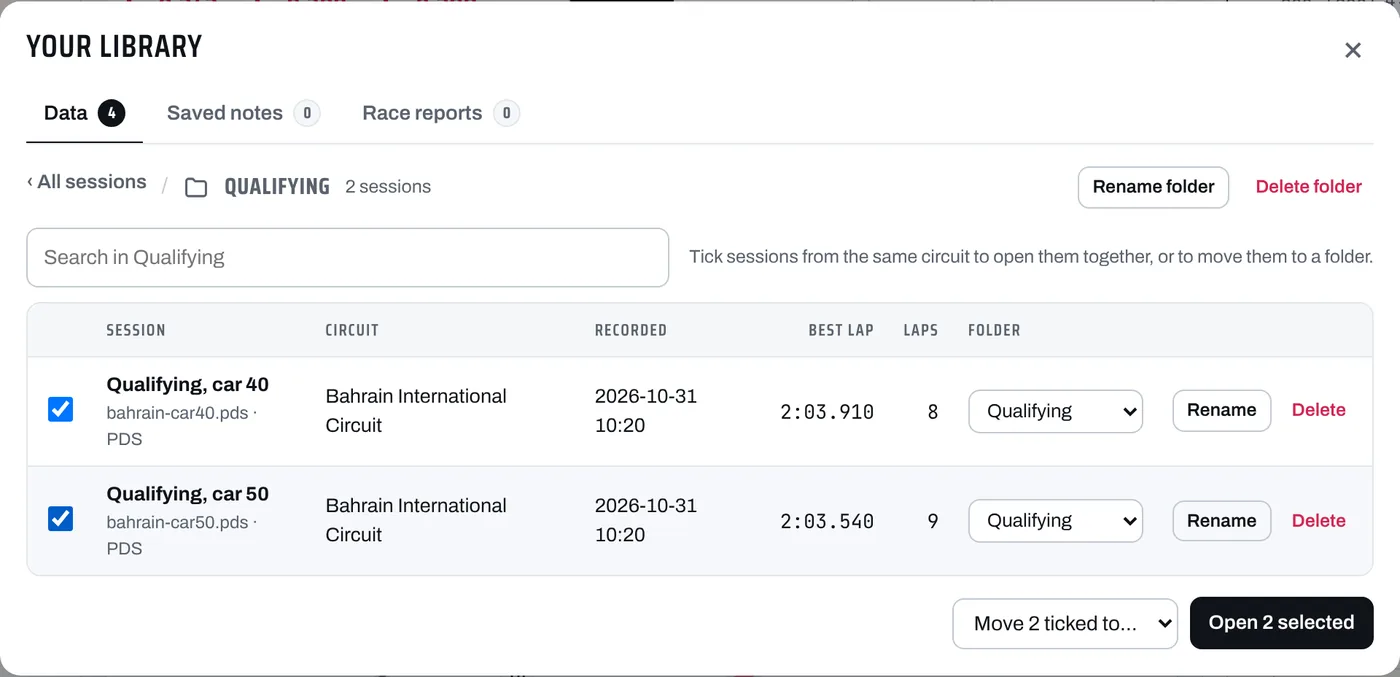
Folders keep the Data tab tidy, for example one for each circuit, event or season. All sessions lists your folders first, then the sessions that aren't in a folder. When you move a session into a folder it leaves that list and is only shown inside the folder. Press a folder's name or Open to go in, and ‹ All sessions to come back out.
- Make a folder: press New folder, type its name and press Create folder.
- Put a session in a folder: choose the folder in the session's Folder box. To move several at once, tick them and choose the folder in Move ticked to… at the bottom. Both lists end with + New folder…, which makes the folder and moves the sessions into it in one go.
- Take a session out of its folder: open the folder and choose No folder in the session's Folder box. It goes back to All sessions.
- Rename or delete a folder: use Rename or Delete on the folder's row, or Rename folder and Delete folder inside it. Deleting a folder doesn't delete its sessions: they go back to All sessions.
On a Team plan, each of your drivers also has a folder here, made for you: see From your drivers.
A search in All sessions looks inside your folders too, so you can always find a session. Your ticks stay when you go in and out of folders, so you can open sessions from different folders together, a qualifying session and a race, say. Folders are saved with your account, so you see the same ones on all your devices.
Your account
Open your account from the menu under your email at the top of the app.
- Plan and billing
- Manage billing and invoices opens the secure billing page, where you can change your plan or card, see past invoices or cancel. If you cancel, you keep access until the end of the period you have paid for.
- Devices
- The browsers on your plan. If you get a new laptop or reach your limit, press Remove next to one you no longer use.
- AI debriefs and questions
- How many you have used this month. The allowance resets on the 1st. AI debriefs and questions count. The lookups the AI makes to answer a question don't.
- Sign-in details
- Change your password. If you forget it, use Send reset link on the sign-in page.
- Your logo on reports
- See Your logo on reports.
Team plan
A Team plan is for one team: the team account (the owner, usually the team manager or engineer) plus 5 driver logins. Each driver has their own library and notes, the AI allowance is shared, and drivers can send their sessions and reports to the owner.
Making the driver logins
- In your account, under Driver logins, type your team name (3 to 24 letters or numbers) and press Make the driver logins. You can only do this once.
- You get 5 usernames: driver1.yourteam to driver5.yourteam.
- For each driver, type their name and a password of at least 8 characters, then press Save. The name shows on their login when they sign in, in the menu and as their driver name on reports (they can type their own full name over it). Copy copies the username to send to them.
- The driver signs in on the normal CircuitPT sign-in page, with the username in place of an email.
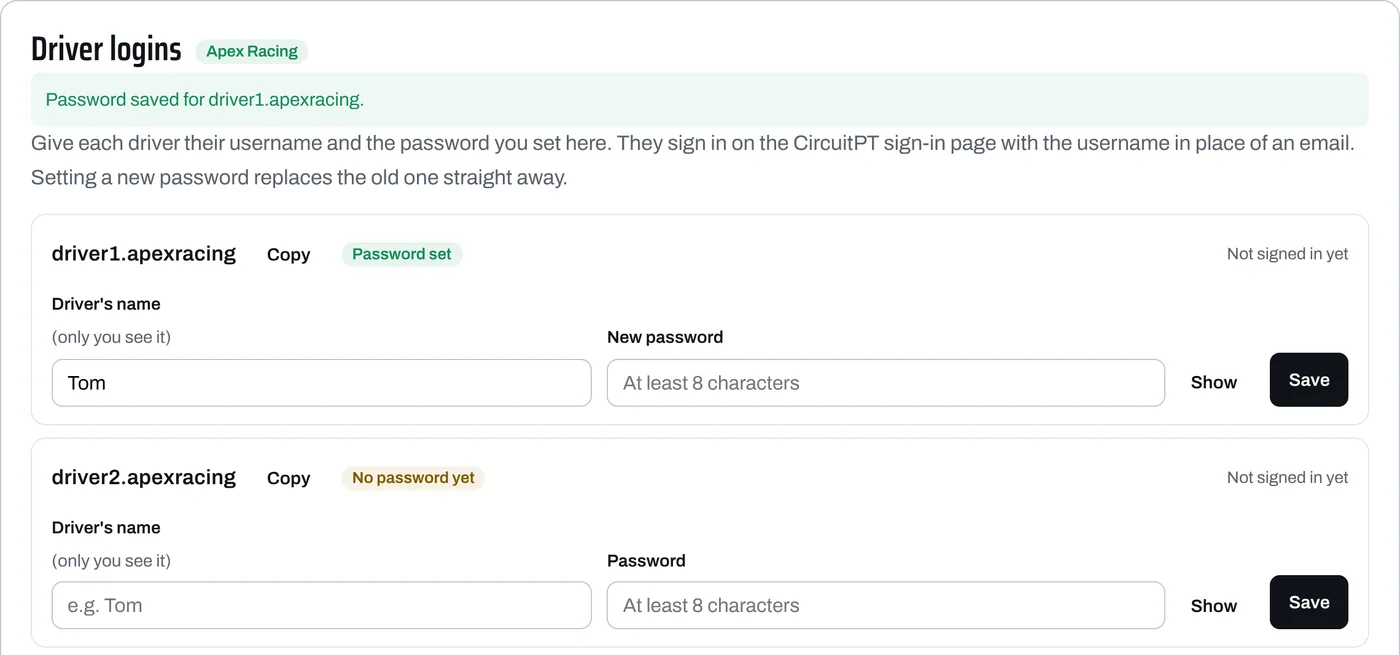
Each driver login works on 2 devices. If a driver forgets their password, set a new one in the same place: the old one stops working straight away. Drivers can't buy plans or see billing, and their access ends if the Team plan ends.
Sending to the team owner (drivers)
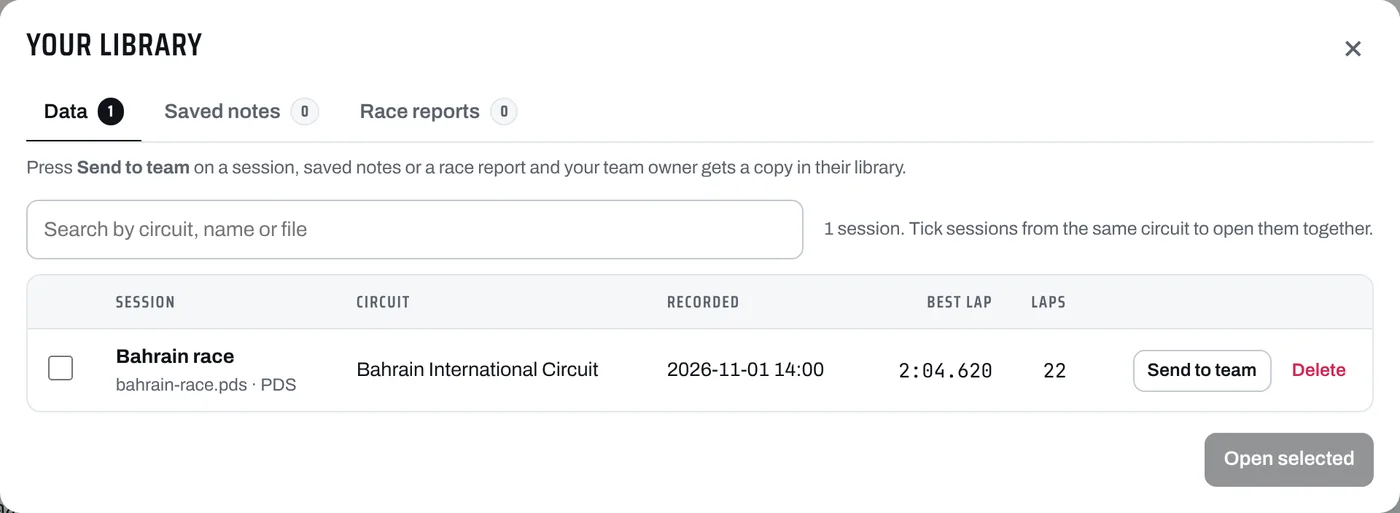
When you are signed in with a driver login, Send to team buttons appear:
- on each session, saved note and race report in your library
- next to Save to library under your notes
- at the top of the race report form
- next to Download PDF report on the Report tab, which sends the full PDF report
Your team owner gets their own copy straight away, in a folder with your name in their library. If you send the same session, notes or race report again, their copy is updated rather than sent twice.
From your drivers (owners)
Each driver login you have set up gets its own folder in your library automatically, named after the driver: the name you gave them in your account, or their username if you didn't. Everything a driver sends goes into their folder, so you always know who sent what. You'll find the folders in two places.
- Data
- Your drivers' folders are at the top of All sessions, with a person on the folder. Every session a driver sends goes in their folder, so your own list stays tidy. Inside, you can open, rename and delete the sessions, or move them into one of your own folders.
- From your drivers
- A folder for each driver with everything they've sent: sessions, notes, race reports and PDF reports, newest first. The list shows what each driver has sent and when they last sent something. A search here looks through every driver's folder.
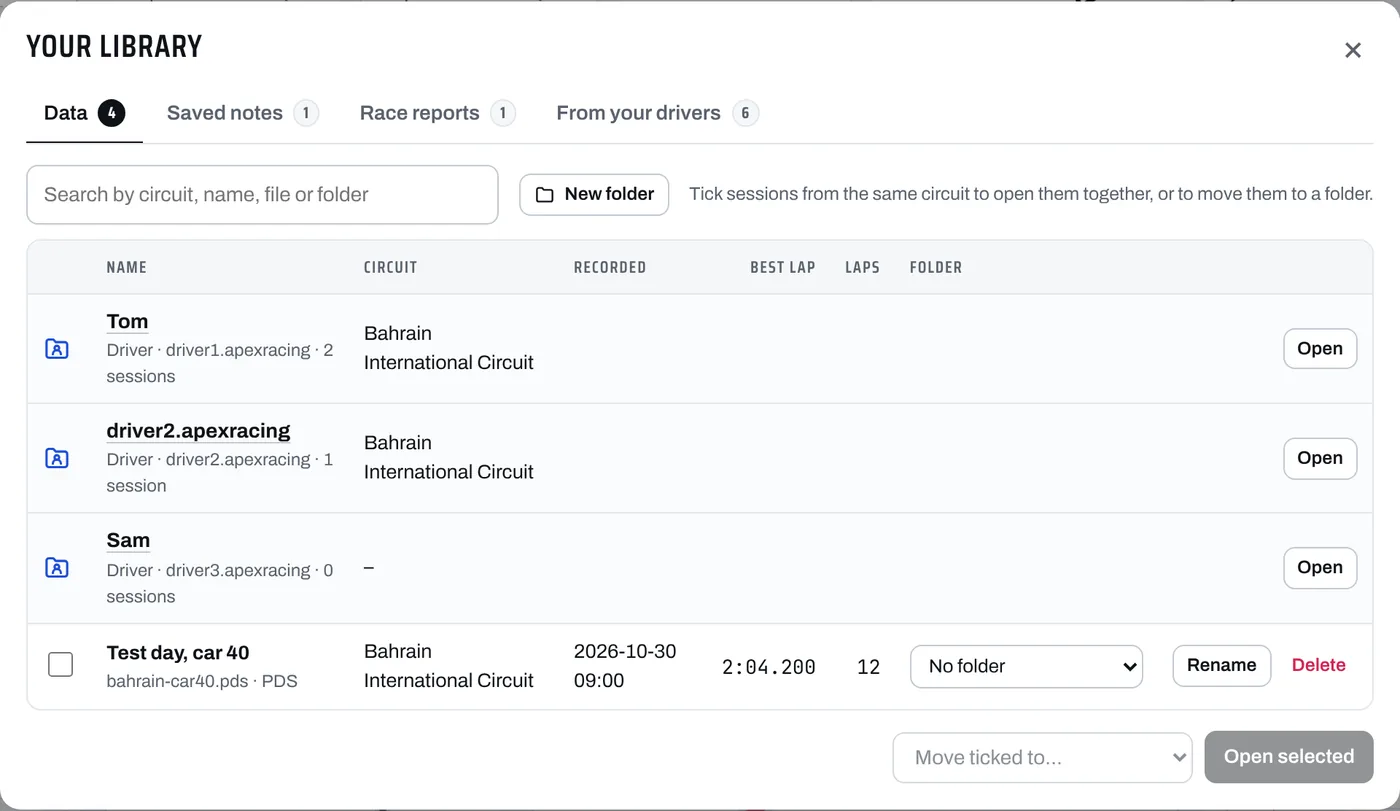
Inside a driver's folder in Data, Everything Tom sent takes you to the same driver in From your drivers, and Tom's sessions in Data takes you back. In From your drivers:
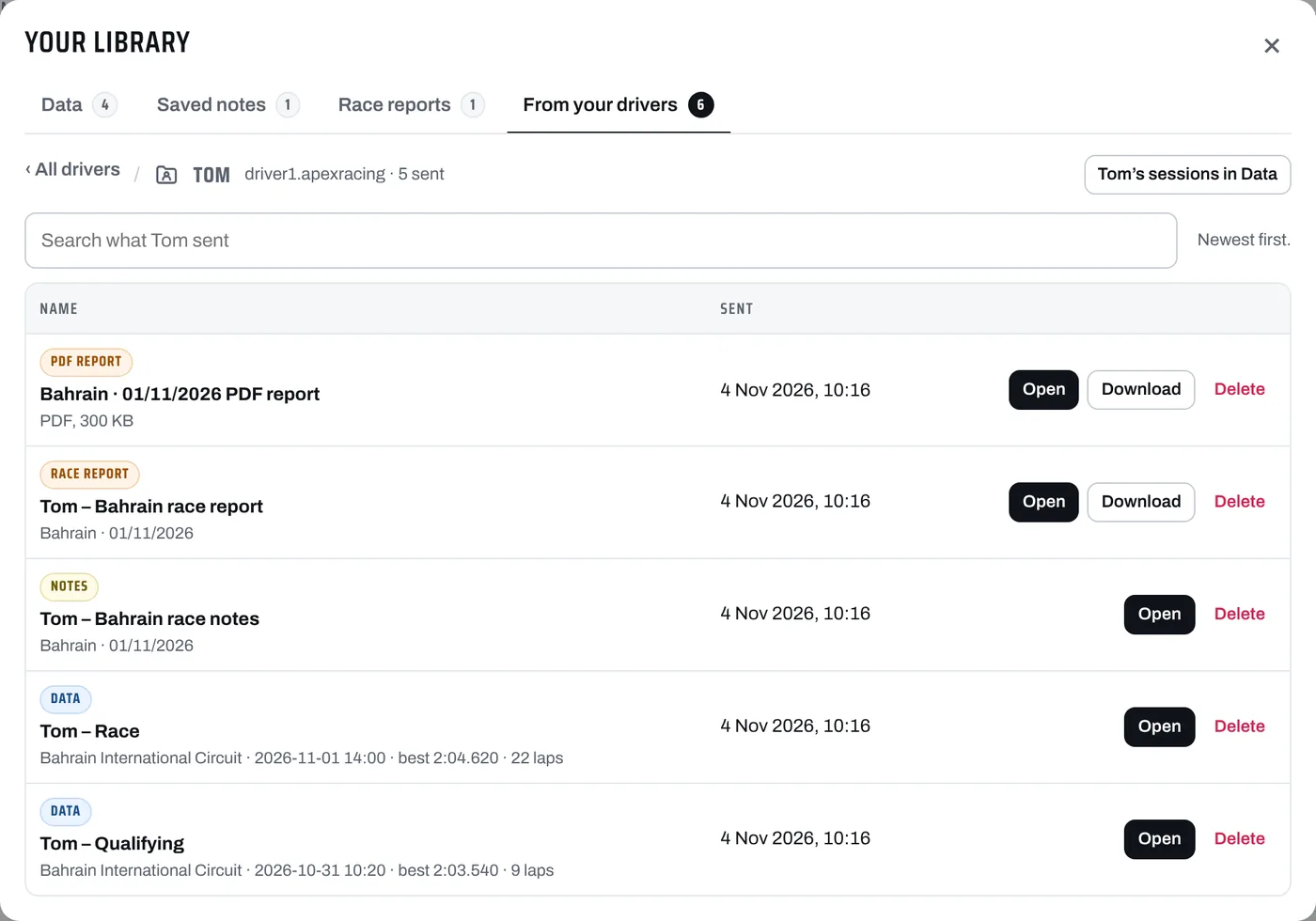
- Data: Open loads the session into the analysis.
- Notes: Open shows them, ready to copy or download.
- Race reports and PDF reports: Open shows the PDF in a new tab, and Download saves it.
- Delete deletes it from your library.
A driver's folder can't be renamed or deleted. To change its name, change the driver's name under Driver logins in your account. The notes, race reports and PDF reports your drivers send are kept in From your drivers only, so your own Saved notes and Race reports tabs hold just yours. Your drivers' own libraries stay private: you only see what they send you.
On your phone
CircuitPT works in the browser on your phone, with nothing to install.
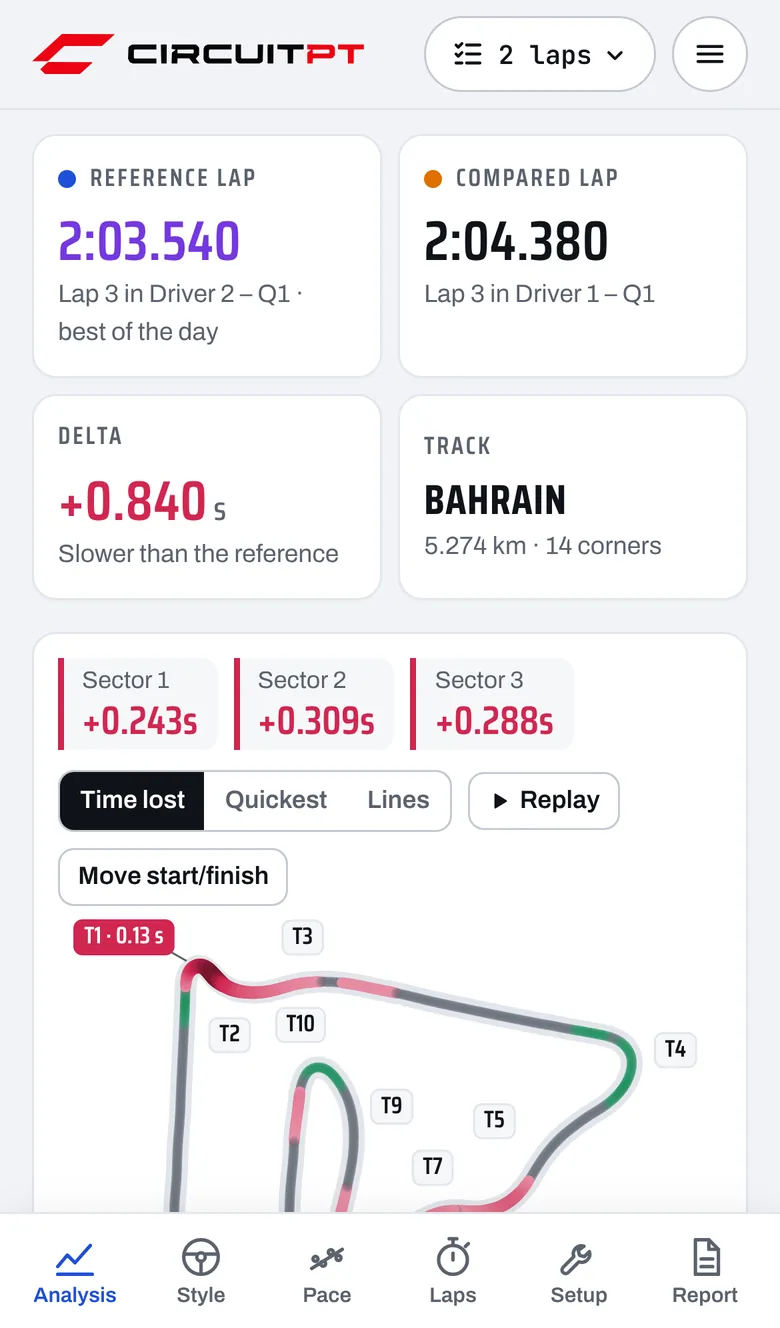
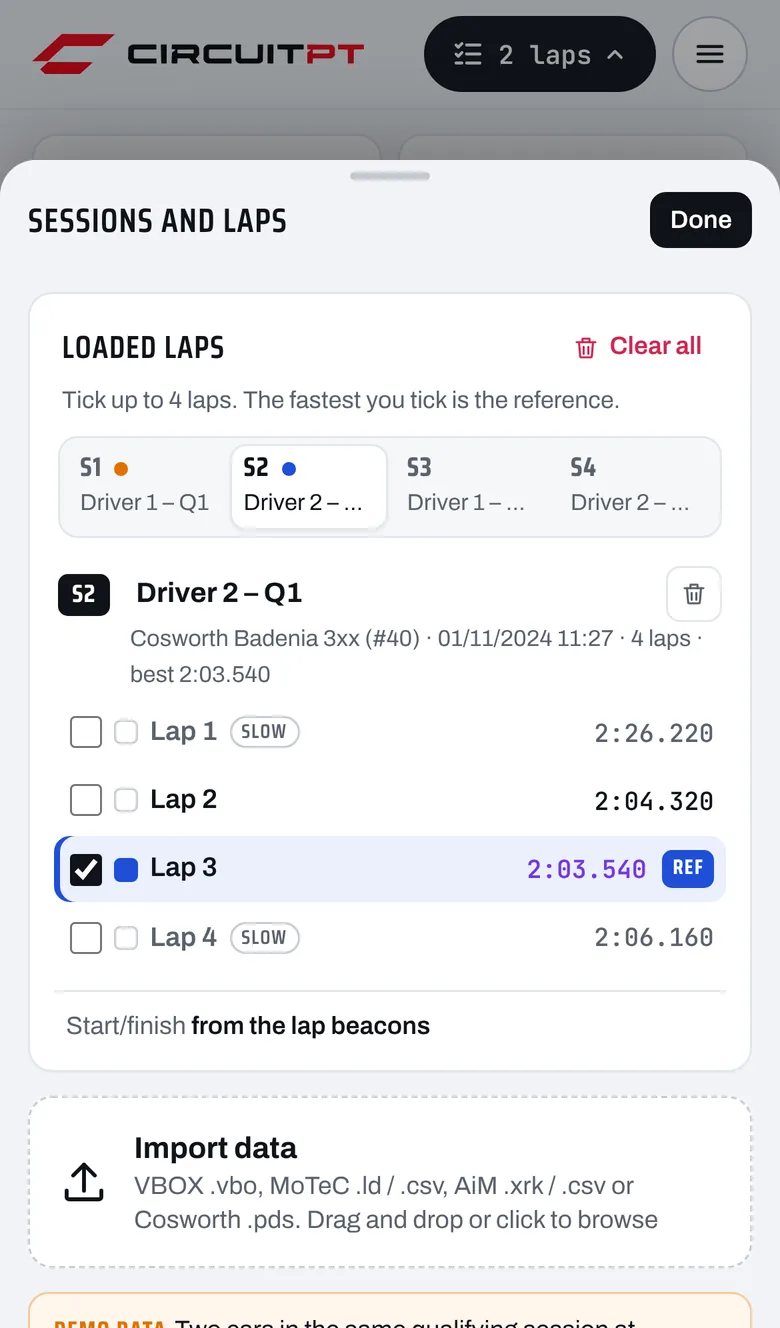
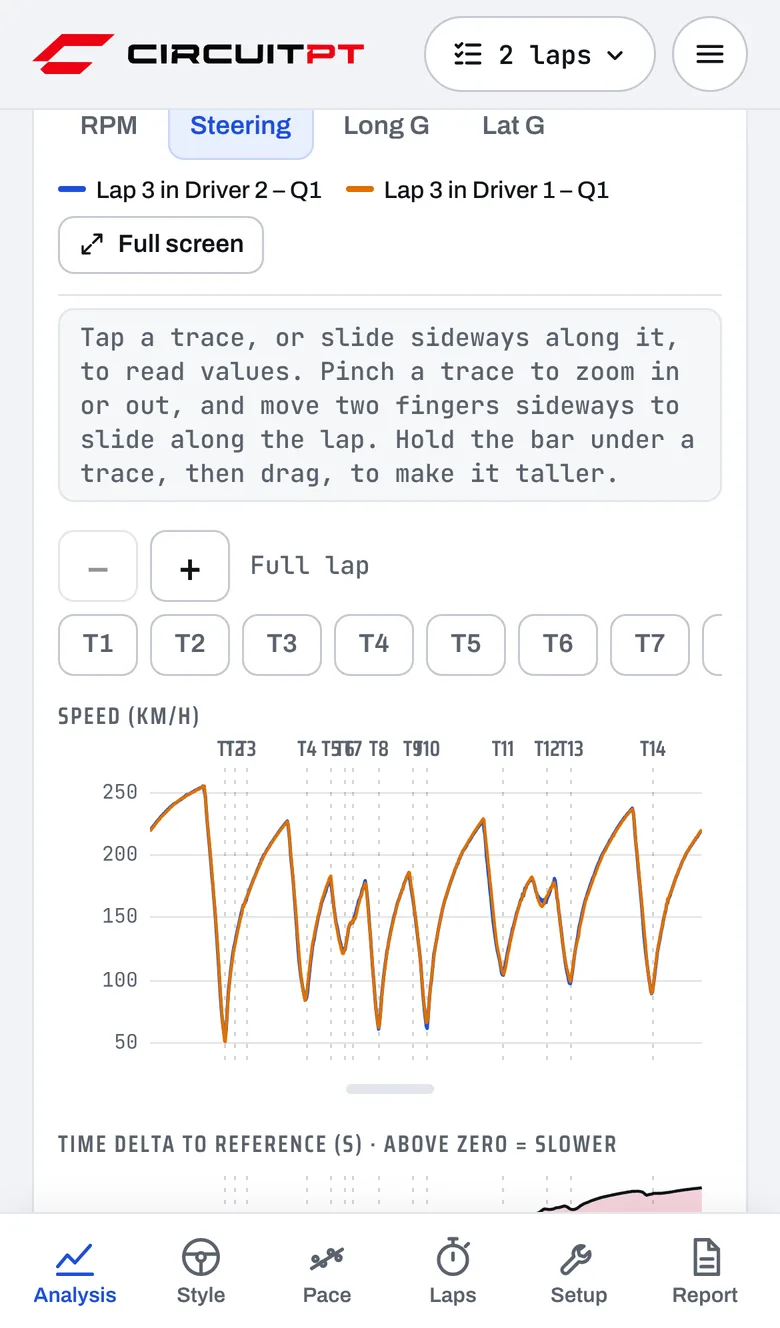
- Your laps: the laps button at the top shows how many laps are ticked. Tap it to open the sessions and laps, and press Done or swipe down to close them.
- The tabs: along the bottom, the Consistency tab is called Pace to fit.
- The menu (☰) holds your plan, Library, account, the driver name and km/h or mph.
- Traces: tap a trace, or slide sideways along it, to read values. Pinch to zoom, and move two fingers sideways to slide along the lap. Or use − and +, or tap a corner chip to zoom straight to it. Hold the bar under a trace, then drag, to make it taller.
Questions and fixes
The app says no laps were found
It couldn't find the start/finish line in the file. Click on the GPS trace where the line is, ideally on the main straight. If the log has no GPS, check the file has lap markers, or for MoTeC, drop the .ldx with the .ld.
My laps are split in the wrong place
Press Move start/finish above the map and tap the right place. Reset, under the lap list, puts it back.
There is no track map
The log has no GPS and the circuit couldn't be recognised from it. Everything else still works, with laps lined up by distance.
The corner numbers don't match the circuit's turn numbers
Corners are found from the slowest points of your fastest lap, so a flat-out kink may not count as a corner, and the numbers can differ from the official ones.
It says my plan's devices are full
Each plan covers a set number of browsers. In your account, under Devices, remove one you no longer use, then reload the app.
I've used all my AI debriefs and questions
The allowance resets on the 1st of each month. Everything else in the app keeps working.
There's no line or score on the Consistency graph
A line needs at least three clean laps in a stint, after in and out laps and anomalies are left out. A qualifying run usually has only one or two flying laps.
Will the setup advice be right for my car?
It works from race engineering principles, what you told it and your data. It doesn't know your current settings or which way your car's adjustments run, so it gives each change as a direction and a small step, such as one step softer on the front bar. Check each change against your car's setup guide and your series rules, and try one change at a time.
How is the theoretical best worked out?
It is your best time in each sector, from every complete lap, added together: the purple sector times in the lap table on the Laps tab, the same as a timing screen. Each session's own theoretical lap, under its laps, adds up that session's best sectors (green). The Best segments table at the bottom of the Laps tab is a finer version, split at every braking point.
A PDF didn't open
Your browser may have blocked the new tab. The PDF is downloaded instead. Look in your downloads.
I'm a driver and I've forgotten my password
Ask your team owner: they set a new one in their account, under Driver logins.
Who can see my files?
Only you. Your library is private to your login. On a Team plan, drivers' libraries are their own, and the owner only sees what a driver sends with Send to team.
How do I delete my data?
Delete sessions, notes and race reports in your library. To close your account, email us.
Still stuck?
Email info@circuitpt.com and we'll help. If you can, say which logger and file type you are using.